

Last update:
Last verified version: MC 4.1.5
Overview
This article provides guidance on troubleshooting communication issues between the Endpoint Agent and the Management Center
Issue
Possible errors would be:
-
No incoming asset request for newly on boarded assets
-
Accepted assets display as "offline" in the Management Center even when they are online
-
No scans or response control tasks executed on assets
Analyze the problem in the following order of common error sources:
Expected Result
The connectivity between the agent and Management Center is functional:
-
THOR scans and response control tasks run
-
THOR logs transmit to the Management Center
-
Asset information transmit to the Management Center
-
Agent updates run
Useful Tools and Logs for Troubleshooting
Endpoint Agent Log
If you encounter any problems, first check the endpoint agent log. It is located in the Endpoint Agent's program folder.
Linux , macOS:
/var/lib/asgard2-agent/log/agent.log
Windows:
c:\windows\system32\asgard2-agent\log\agent.log
Management Center Log
In the Management Center UI, access the Agent Access Log. The log rotates regularly; archived logs reside on the server at /var/log/asgard-management-center.
tcpdump
tcpdump is a command-line network packet analyzer that captures and inspects network traffic on a Linux system. It is not installed by default on our products. Install it with the following command:
sudo apt install tcpdump
The captured data can be analyzed in Wireshark.
Wireshark
Wireshark is a graphical network protocol analyzer used to capture, inspect, and troubleshoot network traffic.
OpenSSL
OpenSSL is a command-line tool and cryptographic library used for secure communication, encryption, and certificate management. It is usually installed by default on Linux, but on Windows, it must be installed separately.
7-Zip
7-Zip is a free and open-source file archiver for Windows and other operating systems. This allows you to extract the Endpoint Agent Installer for verification.
Endpoint agent service installation, configuration, and runtime issues
Check if the agent installation package is completely
If the service has been installed correctly, the installation directory should initially look like this:
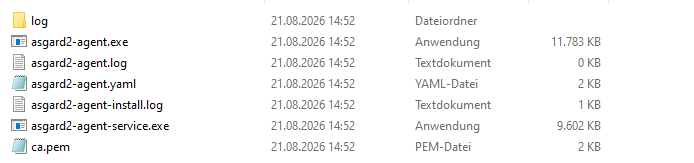
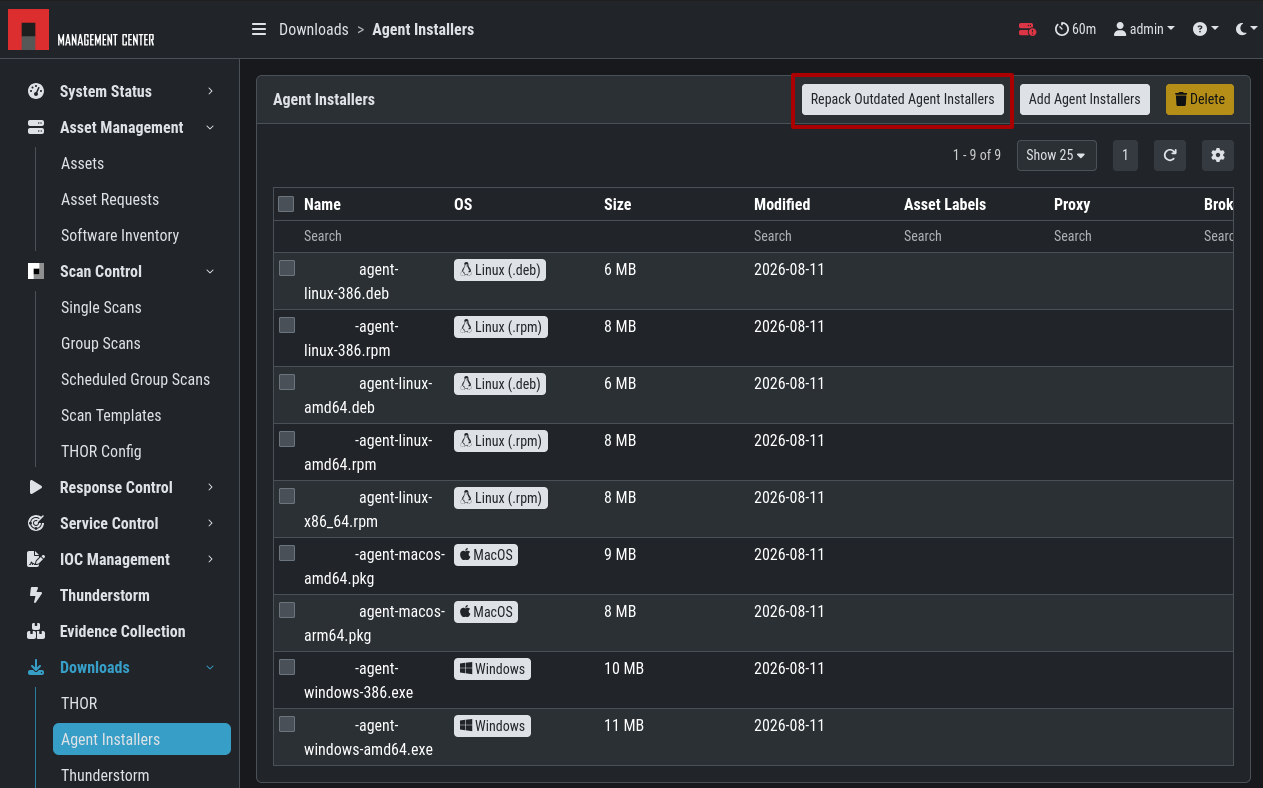
If this is not the case, repack your agent in the Management Center, uninstall and install the agent again on your asset.
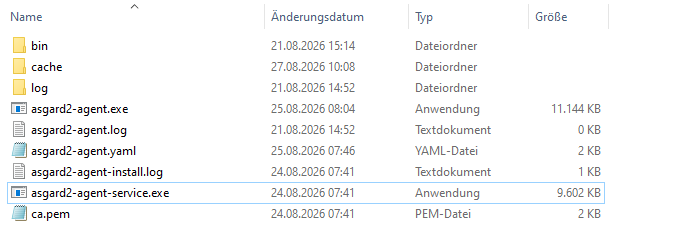
After the agent accepts the asset request, it downloads additional packages and creates new folder (“bin” and “cache”). The directory should then look like this:
Check if the service is running
The agent service should running.
Windows:
C:\Windows\system32>sc query asgard2-agent

SERVICE_NAME: asgard2-agent
        TYPE               : 10  WIN32_OWN_PROCESS
        STATE              : 4  RUNNING
                                (STOPPABLE, NOT_PAUSABLE, ACCEPTS_SHUTDOWN)
        WIN32_EXIT_CODE    : 0  (0x0)
        SERVICE_EXIT_CODE  : 0  (0x0)
        CHECKPOINT         : 0x0
        WAIT_HINT          : 0x0
Linux:
root@debian-client:/root# systemctl status asgard2-agent
● asgard2-agent.service
     Loaded: loaded (/etc/systemd/system/asgard2-agent.service; enabled; preset: enabled)
     Active: active (running) since Thu 2026-08-27 07:27:53 CEST; 5h 53min ago
 Invocation: c8fc7d8324c146dabb272b3202691584
   Main PID: 1195 (asgard2-agent-s)
      Tasks: 38 (limit: 37956)
     Memory: 71.2M (peak: 85.9M)
        CPU: 7.410s
     CGroup: /system.slice/asgard2-agent.service
             ├─1195 /usr/sbin/asgard2-agent-service
             ├─1227 /var/lib/asgard2-agent/asgard2-agent
             └─4918 /var/lib/asgard2-agent/bin/generic -taskid 18446744073709551615 -name asgard2-agent -args "{\"playbook\":{\"name\":\"control\",\"essential\":true}}"
If this not the case, check for agent requirements, EDR exclusions and if CIS Benchmarks are applied. If all requirements are met, proceed to the next steps. Also check to see if you're running a 32-bit agent version on a 64-bit OS.
On Windows, check the Event Logs using Event Viewer.
On Linux check the system journal with journalctl:
root@debian-client:/home/root# journalctl -u "asgard2-agent"
Sep 19 15:58:17 debian-client systemd[1]: Stopping asgard2-agent.service...
Sep 19 15:58:17 debian-client asgard2-agent-service[1214]: Error: no such process
Sep 19 15:58:17 debian-client systemd[1]: asgard2-agent.service: Deactivated successfully.
Sep 19 15:58:17 debian-client systemd[1]: Stopped asgard2-agent.service.
Sep 19 15:58:17 debian-client systemd[1]: asgard2-agent.service: Consumed 1.973s CPU time, 66.9M memory peak.
Wrong token in asgard2-agent.yaml
When the agent connects first time to the Management Center, the entries token and registered are added to the configuration file asgard2-agent.yaml, regardless of whether the asset request is accepted by the Management Center.
We have observed cases where an incorrect token was specified in the asgard2-agent.yaml file because the file was copied from another asset.
A good test is to delete the token value and set registered to false. After that, the agent service must be restarted. If the token entry is not updated afterward, it is very likely that the agent was unable to communicate with the Management Center.
DNS and routing issues
Check whether the agent initially contacted the Management Center
As described above, when the connection is first established, a token is assigned to the asset and stored in the configuration file. If this entry is missing from the beginning, this is also an indication that network communication is not working.
...
token: IQcK4+XclQ46qrCpqvEje5UvqIpcr9bjcH1kThYWIkmZfWA/r+JYbcvKb3Bc42v1QEOsbsO0jU3Fmjme/dgT+i40LGnIUGrqPK0K4S6ZMChzMN7uGzS/WYohj+aTLA4
registred: true
...
If that entry is missing, first check our network requirements. If all requirements are met, proceed to the next steps.
Ping the Management Center using FQDN:
C:\Windows\system32>ping your-mc.fqdn

Pinging your-mc.fqdn [192.168.94.21] with 32 bytes of data:
Reply from 192.168.94.21: bytes=32 time<1ms TTL=64

Ping statistics for 192.168.94.21:
    Packets: Sent = 4, Received = 4, Lost = 0 (0% loss),
Approximate round trip times in milli-seconds:
    Minimum = 0ms, Maximum = 0ms, Average = 0ms
If no answer appears, ping the Management Center using IP:
C:\Windows\system32>ping your-mc-ip

Pinging 192.168.94.21 with 32 bytes of data:
Reply from 192.168.94.21: bytes=32 time<1ms TTL=64

Ping statistics for 192.168.94.21:
    Packets: Sent = 2, Received = 2, Lost = 0 (0% loss),
Approximate round trip times in milli-seconds:
    Minimum = 0ms, Maximum = 0ms, Average = 0ms
If you receive a response only when using the IP address, check the DNS configuration:
C:\Windows\system32>nslookup your-mc.fqdn
Server:  your-dns-fqdn
Address:  192.168.94.254

Name:    your-mc.fqdn
Address:  192.168.94.14
Analyze traffic between Agent and Management Center
With TLS 1.3, it is no longer possible to easily decrypt network traffic. Here, we are limiting ourselves to detecting the presence of network communication.
Check which routers are located between your agent and the Management Center. That might give us a clue as to where the communication breaks down:
C:\Windows\system32>tracert your-mc.fqdn

Tracing route to your-mc.fqdn [192.168.94.14] over a maximum of 30 hops:

 1 1ms <1 ms  <1ms your-mc.fqdn [192.168.94.14]

Trace complete.
If the DNS resolution is successful, check the communication on server side via tcpdump (must be installed first):
root@management-center:/home/root# tcpdump -nn -v host your-asset-ip and port 443
Optionally create a .pcap file to analyze the communication with Wireshark:
root@management-center:/home/root# tcpdump -nn -v host your-asset-ip and port 443 -w traffic.pcap
Check the communication on asset side via Wireshark (must be installed first):
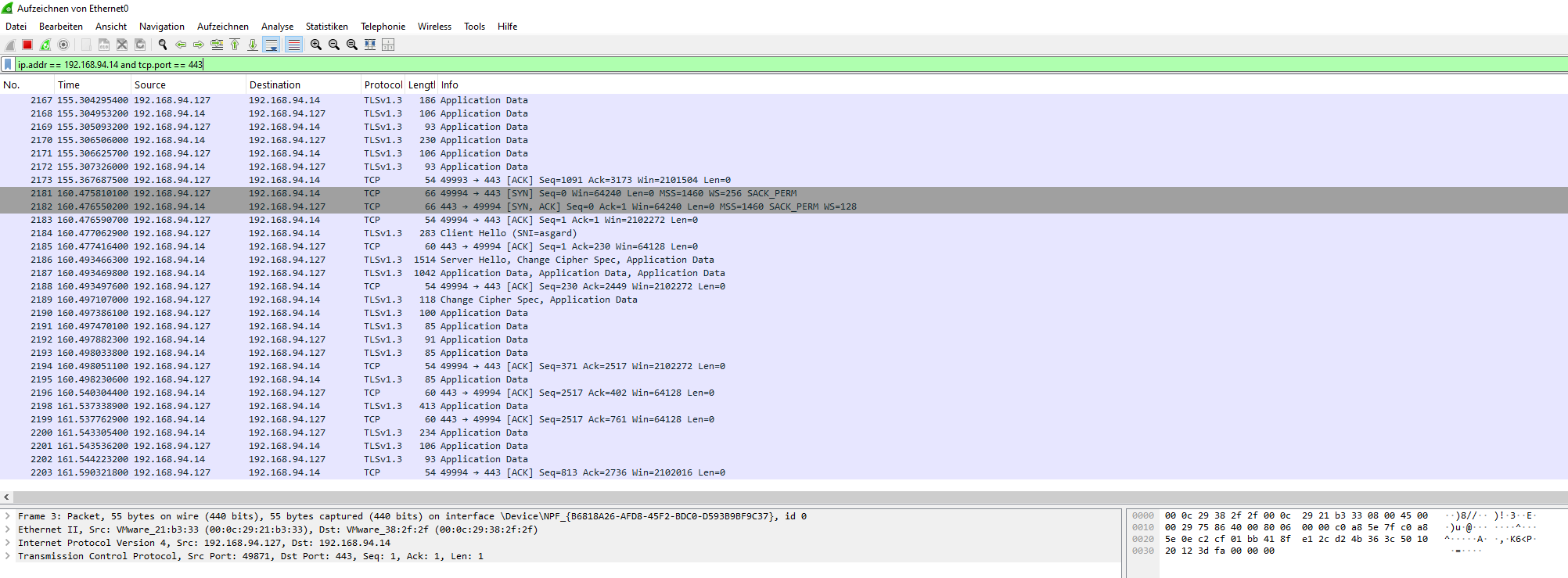
As filter you can use:
ip.addr == your-mc-ip and tcp.port == 443
Wrong MTU value when using VPN
If the asset communicates with the Management Center via VPN, an incorrect MTU can cause packet loss. Use the -l flag to prevent fragmentation. Start with an MTU of 1500.
C:\Windows\system32>ping your-mc.fqdn -f -l 1472
Why does 1472 correspond to 1500?
1472 + 20-byte IP header + 8-byte ICMP header = 1500.
If you receive the following message, it indicates the effective MTU along the path is smaller than 1500:
Packet needs to be fragmented but DF set.
Determine the correct MTU by reducing the size used in your ping command, then update the MTU in your VPN settings.
Certificate or TLS communication issues
If network communication works but issues persist, they may stem from certificate errors or TLS problems.
Your components expect specific certificates from each other when communicating. If a device is trying to inspect TLS traffic, the certificate will change and you might get the following error.
2026/09/01 14:53:40 ASGARD_AGENT: Info: dialing tcp connection to asgard ... ADDRESS: nextron-amc-testing.goetz:443 PROXY:
2026/09/01 14:53:40 ASGARD_AGENT: Info: tcp connection to asgard established ADDRESS: nextron-amc-testing.goetz:443 PROXY: REMOTE_ADDR: 192.168.94.1:443
2026/09/01 14:53:41 ASGARD_AGENT: Error: [core] [Channel #1 SubChannel #2]grpc: addrConn.createTransport failed to connect to {Addr: "nextron-amc-testing.goetz:443?server_name=nextron-amc-testing.goetz%!A(MISSING)443", ServerName: "asgard", }. Err: connection error: desc = "transport: authentication handshake failed: tls: failed to verify certificate: x509: certificate signed by unknown authority (possibly because of \"crypto/rsa: verification error\" while trying to verify candidate authority certificate \"ASGARD Management Center\")"
Check ca.pem
If the output shows an error, it may be due to wrong ca.pem (see below), a proxy with TLS inspection or a changed FQDN for the MC. In that case, follow this article.
Compare the agent's ca.pem with the server certificate. First, download ca.pem from the server using your web browser:
https://your-mc.fqdn:8443/ca.pem
Using PowerShell, the file hash comparison command looks like this and the output should be true:
PS c:\windows\system32 (Get-FileHash "C:\users\admin\download\ca.pem" -Algorithm SHA256).Hash -eq (Get-FileHash "C:\Windows\System32\asgard2-agent\ca.pm" -Algorithm SHA256).Hash
True
If the response is False, check the ca.pem included in your agent installer package. You can extract it using 7-Zip. This could be a sign that the FQDN has been changed.
What is gRPC?
Our products use gRPC for communication.
gRPC is a high-performance framework for communication between distributed services, originally developed by Google.
It lets one application call methods on another as if they were local functions. gRPC typically uses:
-
HTTP/2 for network communication
-
Protocol Buffers for compact, strongly typed message serialization
-
Code generation to create client and server interfaces automatically
-
Support for unary calls and streaming (client, server, or bidirectional)
Check communication with OpenSSL
To test the connection with OpenSSL on Windows, you must install it separately.
The command requires that the ca.pem file be present in the agent directory. It is mandatory for the agent service and deployed using the installer.
This is what a successful result should look like:
c:\Program Files\OpenSSL-Win64\bin>openssl.exe s_client -connect YOUR-AMC-FQDN:443 -CAfile c:\Windows\system32\asgard2-agent\ca.pem -servername YOUR-AMC-FQDN
Connecting to 192.168.94.1
CONNECTED(00000214)
depth=1 O=Nextron Systems GmbH, CN=ASGARD Management Center
verify return:1
depth=0 O=Nextron Systems GmbH, CN=ASGARD Management Center
verify return:1
---
Certificate chain
 0 s:O=Nextron Systems GmbH, CN=ASGARD Management Center
   i:O=Nextron Systems GmbH, CN=ASGARD Management Center
   a:PKEY: RSA, 4096 (bit); sigalg: sha256WithRSAEncryption
   v:NotBefore: Jun 13 14:36:31 2024 GMT; NotAfter: May 20 14:36:31 2124 GMT
---
Server certificate
-----BEGIN CERTIFICATE-----
MIIGXjCCBEagAwIBAgIUIRWDJCbuYaQS7/HN397DVdxBHOIwDQYJKoZIhvcNAQEL
BQAwQjEdMBsGA1UECgwUTmV4dHJvbiBTeXN0ZW1zIEdtYkgxITAfBgNVBAMMGEFT
R0FSRCBNYW5hZ2VtZW50IENlbnRlcjAgFw0yNDA2MTMxNDM2MzFaGA8yMTI0MDUy
MDE0MzYzMVowQjEdMBsGA1UECgwUTmV4dHJvbiBTeXN0ZW1zIEdtYkgxITAfBgNV
BAMMGEFTR0FSRCBNYW5hZ2VtZW50IENlbnRlcjCCAiIwDQYJKoZIhvcNAQEBBQAD
ggIPADCCAgoCggIBALLFTLTs87fMtNwGcA9Az5yt5k+SypAU+XWF7haGuaeQ2ay7
L614x9jxOKJNGKDCsNitJVibE/3ojKaRPTO/DxNI4O6zLHEryPESRLD27CnVA+lg
wCeZBJ0sHebDbX4y+IpDD4ypPlDOHiRwkcZq8eaGEG59oL8CAzd69IAm2DDCCCHn
NOKmoYWiUdYfDS8aMlxPddlBq6rq4LQecvods4GWSeFnP3bvS/o2X5vFs4bhHEew
qJijBrkAAlYQdosk+yCVdNrS1Itf7asFW0vy8HDNGGTCYrAAJQQZJIKtoPvoGoTR
w73Ak6JYN2mjzmahwDMWrwM+dDWax0VLpdx3H5DPUTunUplYtY5Vrbf0IjMC96mI
uaItIzFNa123Slp/k9anJPNePDwlDf/MZNOf/Tmja3dwS8S1GJdrls9S/OrRKmw9
amv9A+Vmor2OEZ+JZV8vwt+NkfOKoRMG/2TmOfMI0R1RRrVwbWwvdrigKh/gFAw7
s2Ip+oLRudQ8e/lZVLHUNQBziJbQVRcBmBp66PeGd6HfZwYOa3IDLQTQOPkuEQXX
D191VAIf6jej3hMvVl1O+Ab4Qi6UMdrEzQaTHI52lhEEgVG7hfUacQWGBMV5UnEC
IYMzQENY04FLSlVh8psNtFrW6Jb1Oog4mf33Dt92koKgmIz8weaN+0hSyfhpAgMB
AAGjggFIMIIBRDAJBgNVHRMEAjAAMBEGCWCGSAGG+EIBAQQEAwIGQDAzBglghkgB
hvhCAQ0EJhYkT3BlblNTTCBHZW5lcmF0ZWQgU2VydmVyIENlcnRpZmljYXRlMB0G
A1UdDgQWBBS2b9bUE3E6tAH64Hd/PzLAUH1TFzB9BgNVHSMEdjB0gBTbwgMPr91p
N4a6tD5F3VIHKrteoqFGpEQwQjEdMBsGA1UECgwUTmV4dHJvbiBTeXN0ZW1zIEdt
YkgxITAfBgNVBAMMGEFTR0FSRCBNYW5hZ2VtZW50IENlbnRlcoIULeo7d4u1lffO
0v5uVE1aZfqShUIwDgYDVR0PAQH/BAQDAgWgMBMGA1UdJQQMMAoGCCsGAQUFBwMB
MCwGA1UdEQQlMCOCGW5leHRyb24tYW1jLXRlc3RpbmcuZ29ldHqCBmFzZ2FyZDAN
BgkqhkiG9w0BAQsFAAOCAgEAHBIE7OP/4xD/g7qDnOhAK8ajsdFNyMKpmGkm7o+k
i+JLgXw3G2mdI+1grGgQmznlHZRCLl1GPvl3z98+7SI1uwzBYBuQcrGO1zYDz2k+
ClNeJzWvXHcEjkTwtn9jR8VuctBu1vyOjf031CuJT+uBbhXc0Y+OolA3Ne1/FdhP
Z1pzdzhv9Ji+0N5EuIZ4GlQ7ykuCgmmFA/kO5lIYH+Q5o+mvKjSRvIp9Syw9K7Yt
QzGS5hZXcXie+0Uzw+xtW763JyEZ6FshG7I9WzFMWb8WJyzQ/iV+ult7uOO13NgB
Cko0NWZJvHXDsfGpsQ6LU1nQmxV5lprr9M+8R+q1cR7W7DPTewl+5owvtJwIKujB
KZg0RZkXmkXMRf/nkLEBlqazco8WaXQg34lyzqm2biaqkZTpn0dhlQ1vJa7KEIRu
dKCPGFC1jxxSuOOSZ9w9I6XL9TKiNtaGngV/FSIk8S16FqwDcrKdqNfO/rBvh/F6
yt9IDxfQih0BPb7X8ElIuwpM2P2lcVER+PSySbO2rpK9YJXb0QDw7EbtDnmAP/f5
hj2eWr+7h4bcyjmPS45I6u17lrbTnHNDoyYoaT9odXTzIQBedQV27yqwDtTknNmB
RgaytbWytcqBg1C7e+EWEZvfCO3zcAHvwQMqXa8yeISzG2R++L1+riTxQHcKm7k8
ojY=
-----END CERTIFICATE-----
subject=O=Nextron Systems GmbH, CN=ASGARD Management Center
issuer=O=Nextron Systems GmbH, CN=ASGARD Management Center
---
No client certificate CA names sent
Peer signing digest: SHA256
Peer signature type: rsa_pss_rsae_sha256
Negotiated TLS1.3 group: X25519MLKEM768
---
SSL handshake has read 3518 bytes and written 1628 bytes
Verification: OK
---
New, TLSv1.3, Cipher is TLS_AES_128_GCM_SHA256
Protocol: TLSv1.3
Server public key is 4096 bit
This TLS version forbids renegotiation.
Compression: NONE
Expansion: NONE
No ALPN negotiated
Early data was not sent
Verify return code: 0 (ok)
---
ECH: NOT CONFIGURED: -103
---
---
Post-Handshake New Session Ticket arrived:
SSL-Session:
    Protocol  : TLSv1.3
    Cipher    : TLS_AES_128_GCM_SHA256
    Session-ID: 1245B737A2046BBC3B59E6D923BFF13CB108A0CB9FF4AF8D14AB19D04E7DD199
    Session-ID-ctx:
    Resumption PSK: 457A1638E0852EE8CA953A48AA37B1ACF9C0DE8F9FDF7C8BAFF6658A927DC872
    PSK identity: None
    PSK identity hint: None
    SRP username: None
    TLS session ticket lifetime hint: 604800 (seconds)
    TLS session ticket:
    0000 - 1e 6f 7c 47 dd 90 91 4d-f1 a1 3f 0b ac 2f f9 af   .o|G...M..?../..
    0010 - f0 a7 5c f3 e2 d1 4c d1-7d 16 0a 95 f9 e8 4d f8   ..\...L.}.....M.
    0020 - 2f 0b 32 62 8a 3a cd 1a-9d 4e 62 21 98 99 37 ac   /.2b.:...Nb!..7.
    0030 - 17 a3 1d cb db 3f e8 d2-42 4c aa 2c 97 60 77 e4   .....?..BL.,.`w.
    0040 - 82 d6 50 36 16 14 fa f3-b8 19 83 49 2b 6e 80 ae   ..P6.......I+n..
    0050 - ce 3e 67 9b 83 e7 b2 ce-49 43 ce f4 75 1c fe 9f   .>g.....IC..u...
    0060 - dc c0 4a d6 69 36 5b e7-34                        ..J.i6[.4

    Start Time: 1783765927
    Timeout   : 7200 (sec)
    Verify return code: 0 (ok)
    Extended master secret: no
    Max Early Data: 0
---
read R BLOCK
closed
If errors occur, it's likely that a proxy or firewall with TLS inspection is involved.