

Last update:
Last verified version: AC 4.4.7
Overview
This article guides you through disaster recovery or migration your Analysis Cockpit to a new server.
Prerequisites
The Analysis Cockpit version used to create the backup must match the version where it is imported. If this is not the current version available, please contact us.
The Elasticsearch database can not be migrated. Please refer to “Notes on THOR events” below.
-
Access to your license management in our Nextron Customer Portal.
-
A valid, active Analysis Cockpit license.
-
Console root and web access to your server.
-
The legacy Analysis Cockpit is up to date.
-
A current backup of your legacy Analysis Cockpit.
-
Systems communicate via FQDN resolution using DNS.
-
Connected Management Centers do not transfer data during migration.
-
The legacy Cockpit do not transfer data to the Security Center during migration.
-
THOR Cloud do no transfer data during migration.
-
If you are using LDAP, make sure you can log in as a local administrator in your Cockpit in case communication issues arise with the LDAP server during the migration.
Expected result
-
The Analysis Cockpit can be accessed via web UI.
-
Management Center can communicate with the Analysis Cockpit.
-
The Cockpit can communicate with the Security Center, if originally present.
-
The Cockpit can communicate with THOR Cloud, if originally present.
-
The Cockpit can communicate with your LDAP server, if originally present.
-
The Elasticsearch cluster nodes are operational, if originally present.
-
The Cockpit can obtain updates.
-
All existing cases are available.
Notes on THOR events
The Cockpit stores events in the Elasticsearch database on the Cockpit server and, if available, on the cluster nodes.
The Elasticsearch database is excluded from backups and cannot be migrated. To restore events, you have two options:
-
Request the events from the connected Management Centers in the “Scans” section of your Cockpit if they remain available. The Management Center UI currently lacks a retention policy. The available event range depends on whether you have followed the steps outlined in the Maintenance section of our Management Center manual.
-
Reimport the events directly from the legacy Cockpit. In this case, the number of events still available depends on the settings of the retention policy in the legacy Cockpit and your backup configuration.
Currently, re importing events from THOR Cloud is not possible. This feature should be added in future Cockpit versions.
The steps for both options are detailed below.
Steps to proceed
Step 1: Install the new Cockpit infrastructure
Install the new Cockpit and Elasticsearch cluster nodes if they were originally present and need to be replaced. Use the same FQDN as the legacy systems. Use the existing license from the legacy Cockpit. Do not change the DNS entry yet; access the new instance via IP.
Please follow these sections of our manuals for installation:
If you can´t use our Nextron Universal Installer ISO, please follow this KB.
Step 2: Check for updates and install on the legacy Cockpit, if available
Step 3: Disconnect connected systems
Disconnect the connected Management Center, Security Center and THOR Cloud if available. They can be reconnected after migration.
Step 4: Create a configuration backup of your legacy Cockpit
If you can still access the Cockpit, create a backup. The version number is part of the file name.
Step 5: Import the backup in your new Cockpit
Import the latest backup created in your new Cockpit.
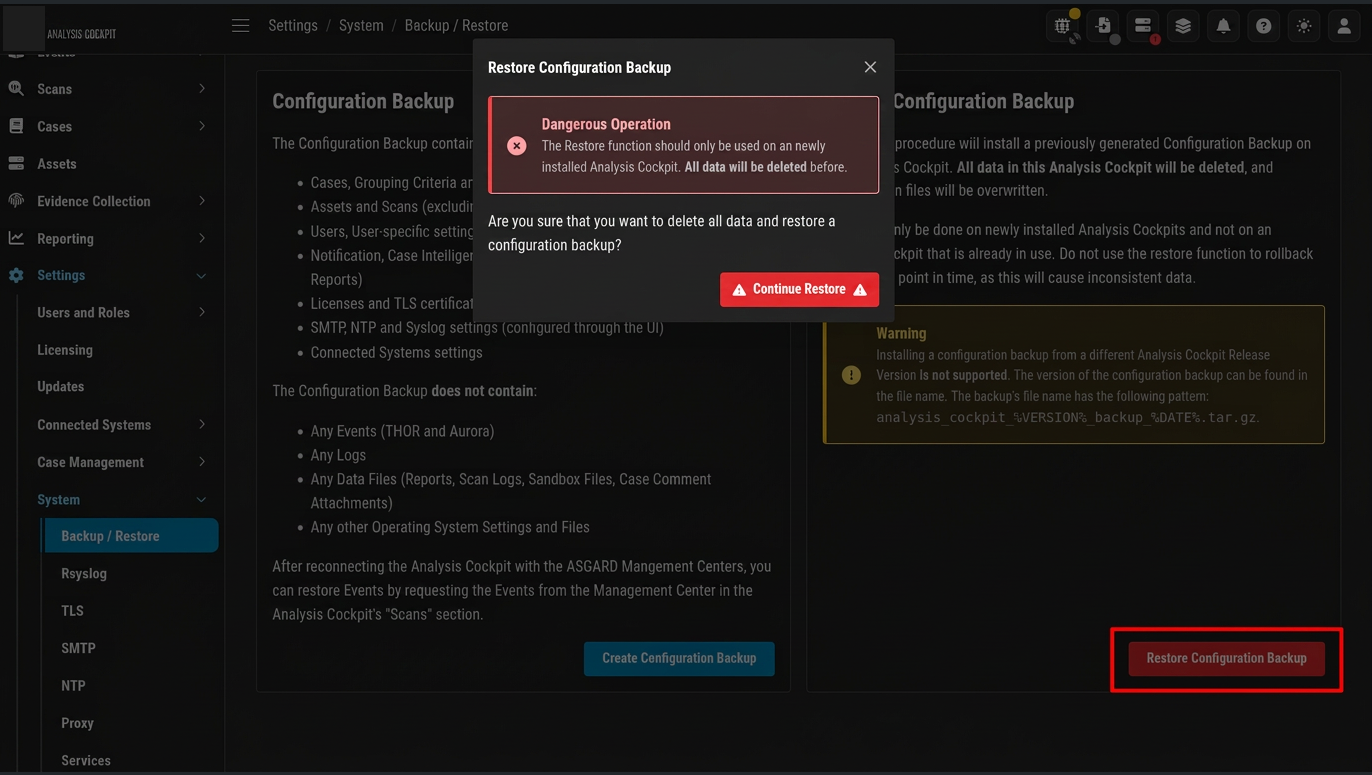
Step 6: Change your DNS settings so that the FQDN points to the IP address of your new Cockpit
Depending on your DNS settings, it may take up to 24 hours for all systems to recognize the new IP address. Before proceeding with the following steps, verify that the Management Center has recognized the change, for example, by pinging the new Cockpit via console.
Before proceeding the next steps, please check the Analysis Cockpit System Diagnostics. No errors should be displayed.
Step 7: Reconnect the systems
Reconnect the Management Center, Security Center and THOR Cloud if available.
Step 8 (optional): Import events from Management Centers
To reimport events from your Management Center please proceed as follows:
-
Open the Scans dashboard and select the required time frame.
-
Adjust the number of items so that all selected scans are displayed on the dashboard, if possible.
-
Select all scans and request the events.
-
Check for import errors.
5. Assign the events to the cases via Optimize.
Step 9 (optional): Import events from legacy Cockpit
To reimport the events from your legacy Cockpit please proceed as follows:
1. Connect to your legacy Cockpit via console to back up and transfer the events.
sudo systemctl stop asgard-analysis-cockpit
sudo tar -czvf /home/nextron/events.tar.gz -C /var/lib/asgard-analysis-cockpit events
sudo scp /home/nextron/events.tar.gz nextron@NEW-COCKPIT-IP:/home/nextron
-
Connect to your new Cockpit via console, extract the events, and remove the .ok flag to prompt the Cockpit to reimport them.
sudo systemctl stop asgard-analysis-cockpit
sudo tar -xzvf /home/nextron/events.tar.gz -C /var/lib/asgard-analysis-cockpit
sudo find /var/lib/asgard-analysis-cockpit/events -type f -name "*.ok" -exec bash -c '
for f; do
    mv -- "$f" "${f%.ok}"
done
' bash {} +
sudo systemctl start asgard-analysis-cockpit
-
Check for import errors.
-
Assign events to cases via Optimize.
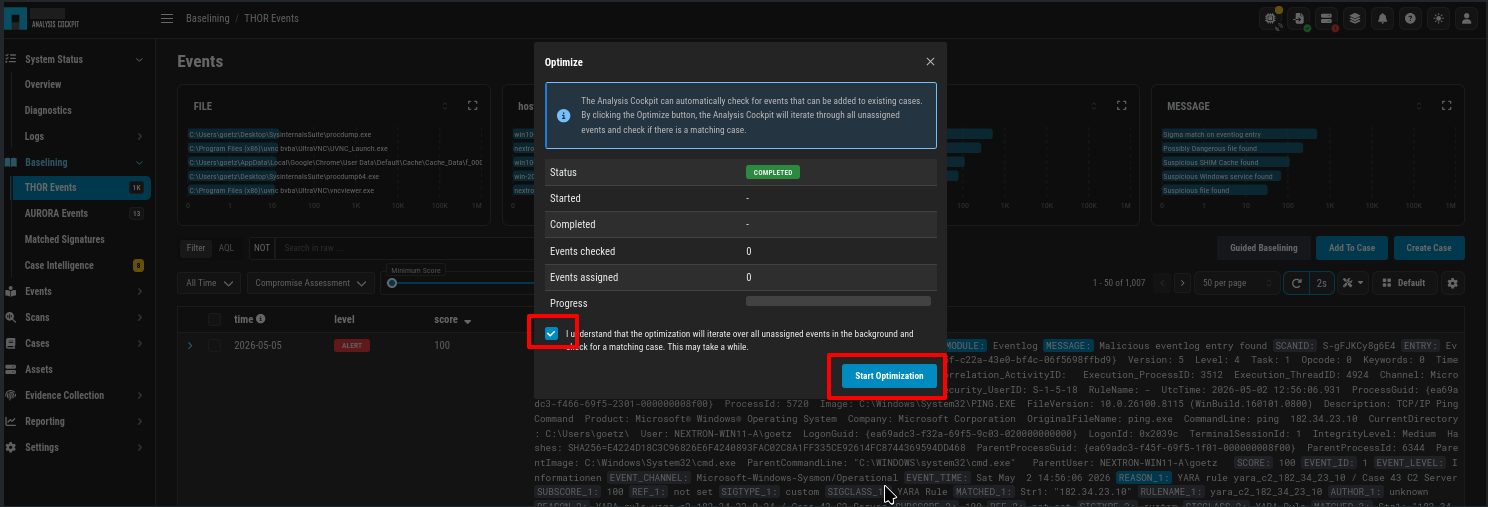
The migration or recovery is complete. Please manually verify that all components work as expected and the data is complete.