

Last verified version: AMC 3.2.1
Overview
This article guides you through installing our ASGARD products when you cannot boot the server with our Nextron Installer CD. This applies to environments such as Microsoft Azure.
We advise against making ASGARD directly accessible via the Internet, except for our Broker Network.
Prerequisites
-
Access to our Nextron Portal.
-
A valid and activated ASGARD license.
-
Console Root access and Web access to your Cloud VM (e.g. Azure).
-
The possibility to install Debian 12 64-bit.
Expected result
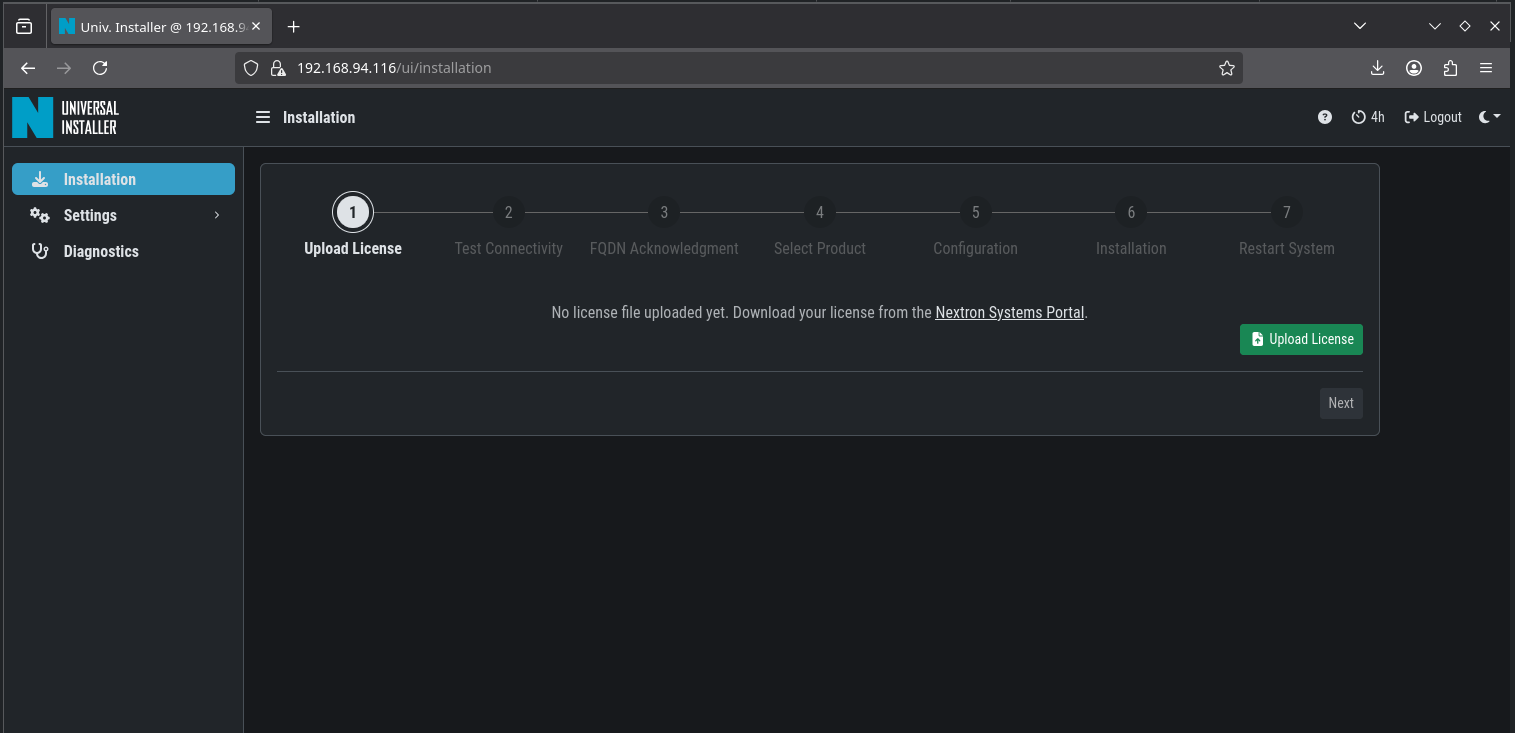
Access the Universal Installer environment through the web UI to install the desired product.
Steps to proceed
Use your preferred OS and tools to extract the installer, upload it to your Debian VM, and connect via SSH to execute it. In this example, we use PowerShell.
-
Install the latest stable core version of Debian (Version 12, but not newer then 12.12) without desktop environment in Azure. Note the hardware requirements for the respective product.
-
Create a user "nextron" during the installation process.
-
Allow your Debian VM to access our ASGARD update servers.
-
Download the Nextron Universal Installer ZIP from our Nextron Portal.
-
Unpack the ZIP file:
Expand-Archive C:\Users\test\Downloads\nextron-universal-installer.zip -
Mount the included ISO:
Mount-DiskImage -ImagePath C:\Users\test\Downloads\nextron-universal-installer\nextron-universal-installer.iso -
Copy the installer to your Debian VM in user nextron's home folder. In our example E:\ is the mount point of the ISO. Please be aware, that the installer version can change:
scp E:\nextron\nextron-universal-installer_1.0.9_amd64.deb nextron@debian12-testing:/home/nextron -
Connect to your Debian VM:
ssh nextron@debian12-testing -
Execute the Nextron Installer:
sudo dpkg -i nextron-universal-installer_X.X.X_amd64.deb -
Restart the VM if the installation process was successful:
sudo reboot
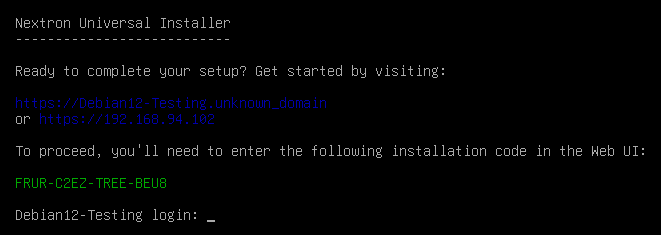
When the machine is online again, you have to connect via Web Browser to continue the installation. Please follow the instructions in the respective product manual to proceed.
Related Content
- Migrating or Recovering the Analysis Cockpit to a New Server
- Fixing Time Zone Issues in ASGARD Management Center for Scheduled THOR Scans
- Repairing Broken Permissions of ASGARD Agent in Windows
- Fixing FQDN Issues for ASGARD Installation and Connectivity
- Avoiding Multiple Asset Requests in Restricted Endpoint Configurations