

Last update:
Last verified version: AMC 3.2.1
Overview
This article explains how to fix time zone issues in your Management Center. Sometimes the server image's time zone is incorrect during installation, causing scheduled THOR scans to run at the wrong time.
Prerequisites
-
Installed ASGARD Management Center
-
Root access to your Management Center
To see if you have this problem in your current installation, please log into your server and execute the following command:
nextron@asgard:~$ timedatectl
               Local time: Mon 2022-10-24 09:52:03 BST
           Universal time: Mon 2022-10-24 08:52:03 UTC
                 RTC time: Mon 2022-10-24 08:52:04
                Time zone: Europe/London (BST, +0100)
System clock synchronized: yes
              NTP service: active
          RTC in local TZ: no
Usually the system clock is synchronized and the NTP service active. The NTP settings can be changed in the web UI of the Management Center but not the time zone.
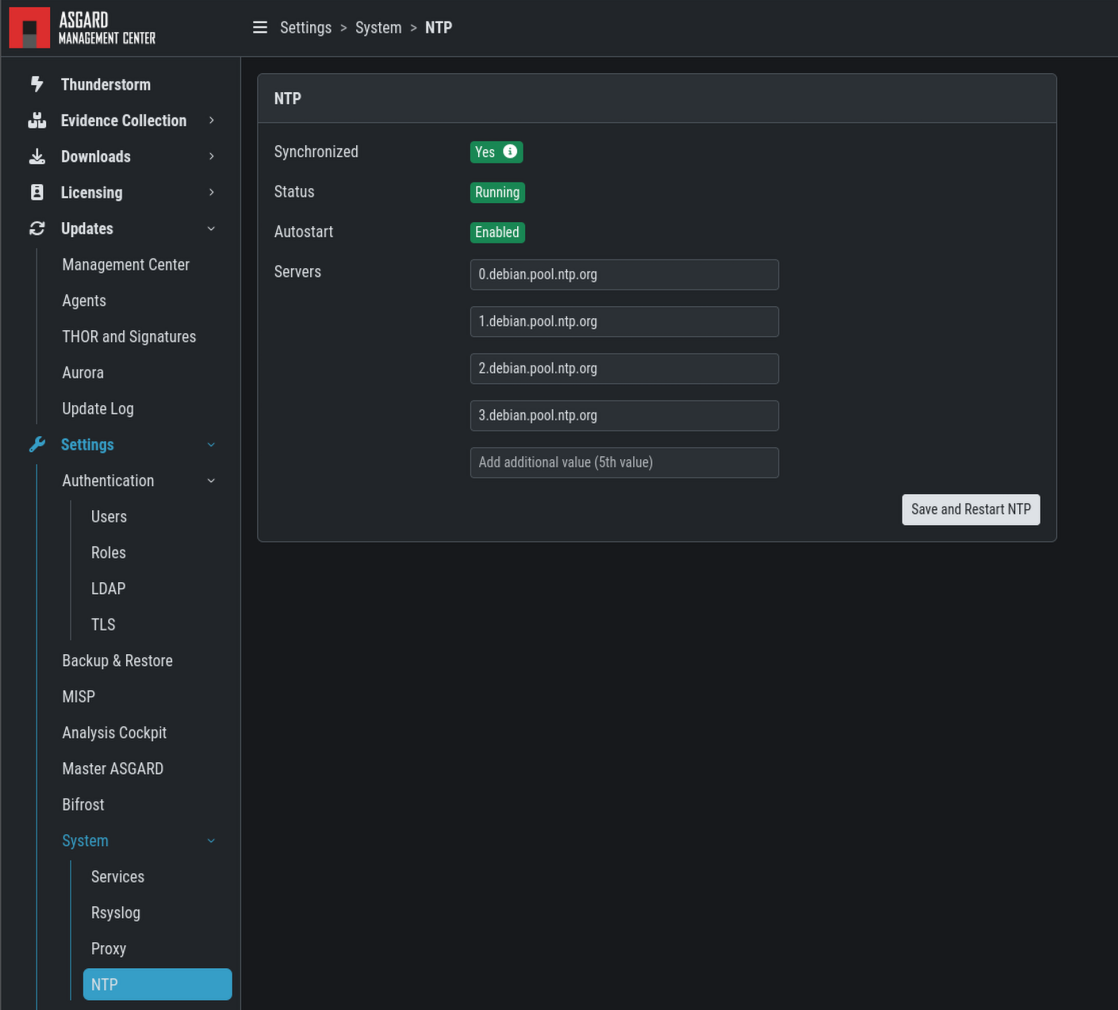
If you see that the time zone is incorrect, follow the next steps to correct it.
Expected result
The time zone is correct, and the scheduled scans started as expected.
Steps to reproduce
This might cause problems with existing Scheduled Scans!
Step 1: List time zones
List all the time zones with timedatectl list-timezones. If you want to search for a specific Country/City, you can use grep, e.g. timedatectl list-timezones | grep Prague.
Step 2: Set time zone
Now that you have the correct timezone you can set it the following way:
nextron@asgard:~$ sudo timedatectl set-timezone Europe/Prague
timedatectl
               Local time: Mon 2022-10-24 10:56:45 CEST
           Universal time: Mon 2022-10-24 08:56:45 UTC
                 RTC time: Mon 2022-10-24 08:56:46
                Time zone: Europe/Prague (CEST, +0200)
System clock synchronized: yes
              NTP service: active
          RTC in local TZ: no
Step 3: Restart the system
Please reboot the system after the changes have been made.
nextron@asgard:~$ sudo reboot