

Last verified version: AMC 3.2.1
Last update:
Issue
If you or another user lost their second factor (2FA) to log into the ASGARD Web UI, you have to reset the users MFA Settings. If you cannot access the Web UI, use the Command Line method.
There are two possible ways to reset 2FA for a specific user:
We recommend to use the first option via the Web UI.
Solution
Using the Web UI
-
Log into ASGARDs Web UI as a user with administrative privileges.
-
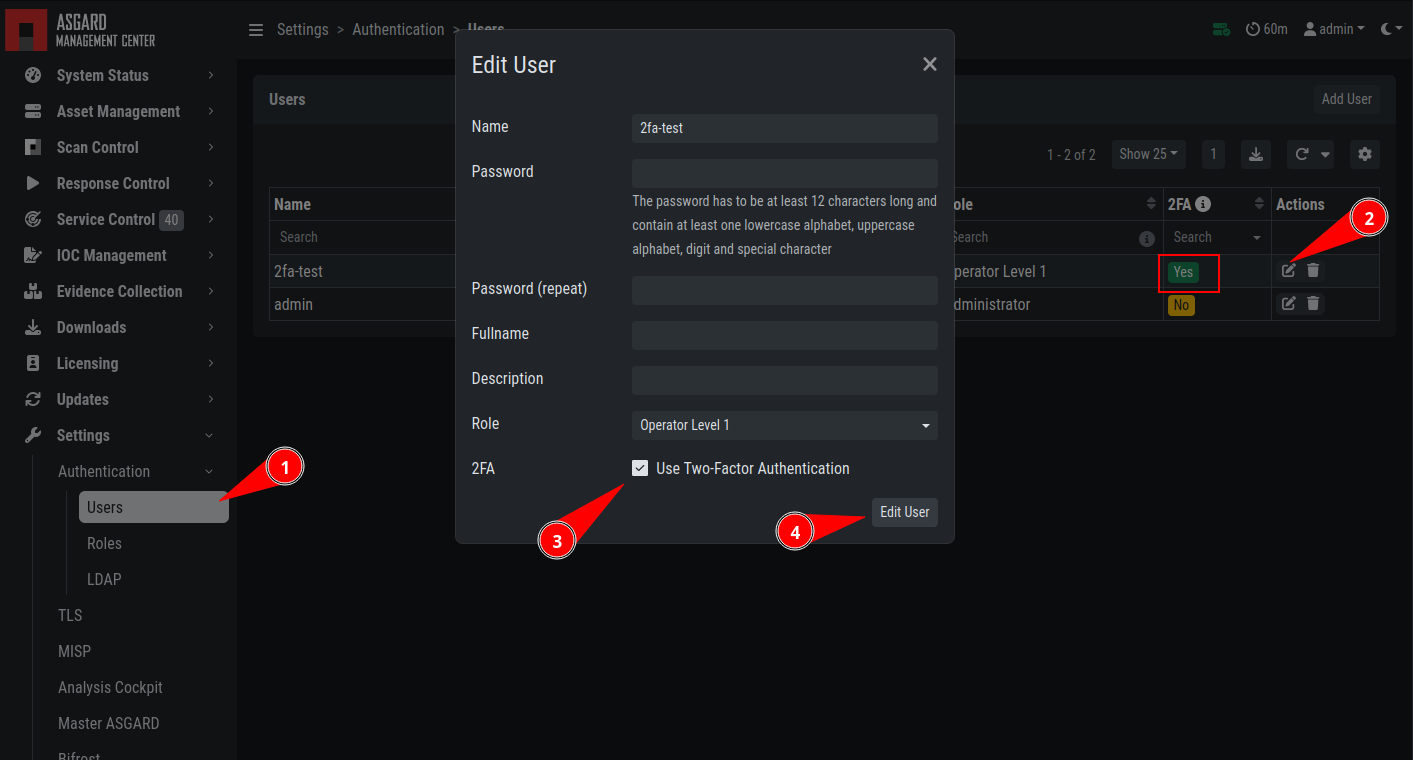
Navigate to "Settings > Authentication > Users" and edit the user you want to reset 2FA for. On the bottom of the modal you will see that the 2FA option is enabled. Disable the option and click Edit User (Leave everything else as it is; do not fill in a new password if not necessary).
Using the Command Line Interface
This method needs SSH access to the Management Center.
-
Log into your ASGARD via SSH.
-
You can reset the users MFA Settings with the following command (in this example we assume that the user is called john):
This will disable the 2FA settings directly in the database. Please make sure the command and especially the username is correct.
nextron@asgard:~$ sudo mysql asgard-management-center --execute "UPDATE users SET tfa_valid = 0 WHERE name = 'john';"
If you don't know the exact username for a user, you can use the following command to get all the usernames and the 2FA status from ASGARD (if "tfa_valid" has a value of "1", this means the user has Two Factor Authentication enabled).
nextron@asgard:~$  sudo mysql asgard-management-center --execute "select name,tfa_valid from users;"
+----------+-----------+
| name     | tfa_valid |
+----------+-----------+
| admin    |         1 |
| john     |         0 |
| rickroll |         1 |
+----------+-----------+
This command will also allow you to verify if the UPDATE command was successful ("tfa_valid" should be "0").