

The prerequisite is a CSR, which you can create according to these instructions:
https://asgard-manual.nextron-systems.com/en/latest/administration/additional.html#tls-certificate-installation
Step 1: Submit new request
-
Open the Certificate Authority snap-in within Windows Server
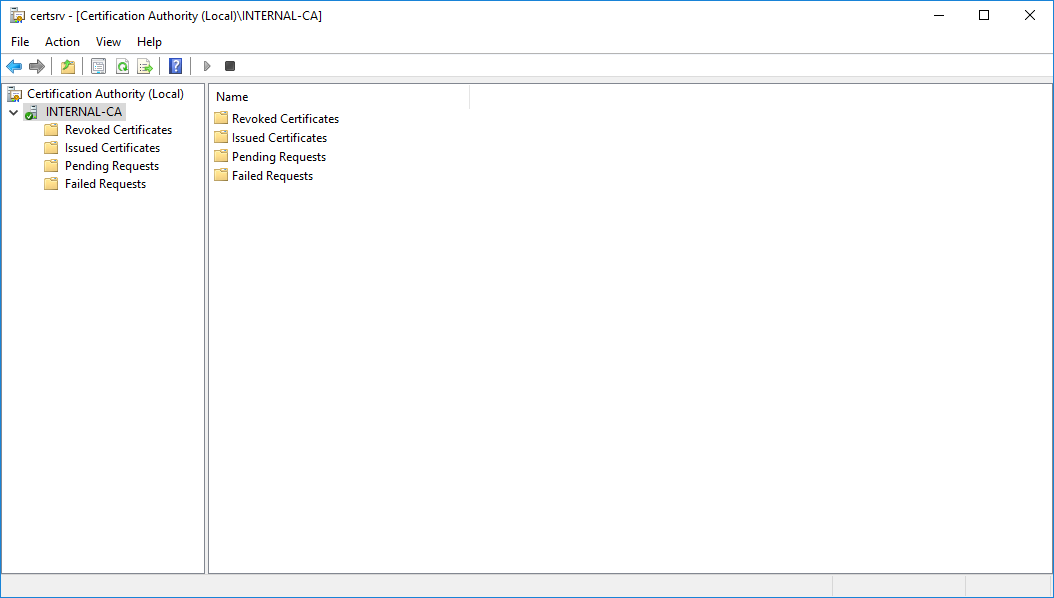
-
Right click your CA >> All Tasks >> Submit new request
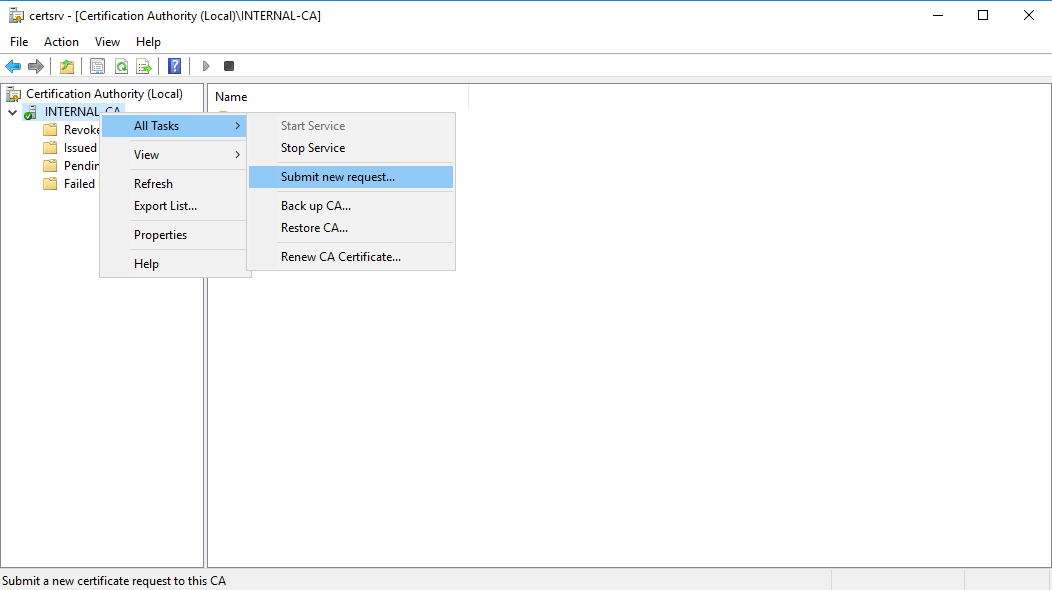
-
Locate and open the signing request file
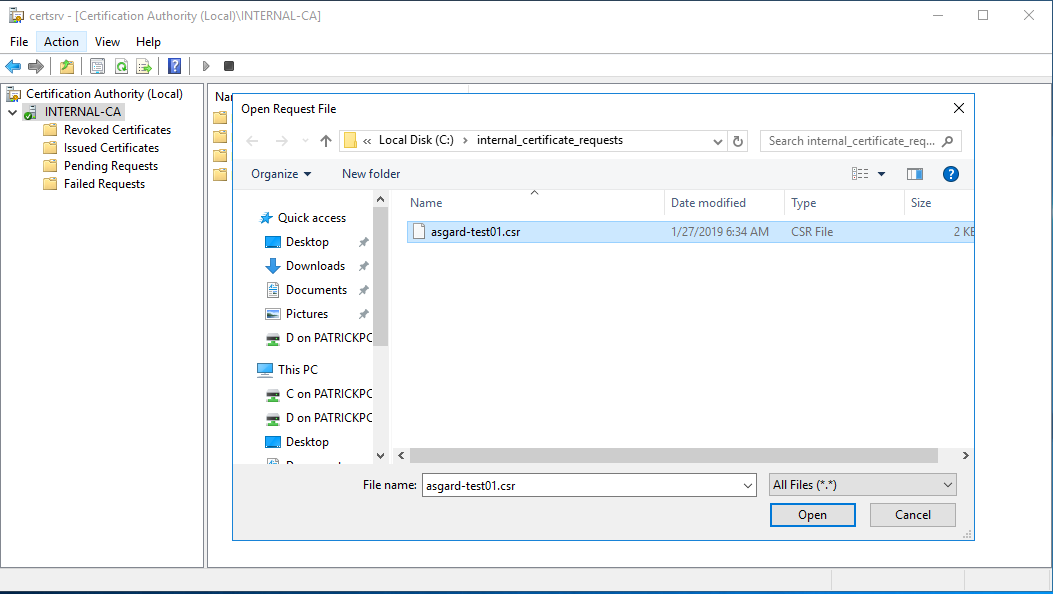
Step 2: Issue certificate
-
Navigate to the "Pending Requests" within your CA snap-in and right click the imported CSR >> All Tasks >> Issue
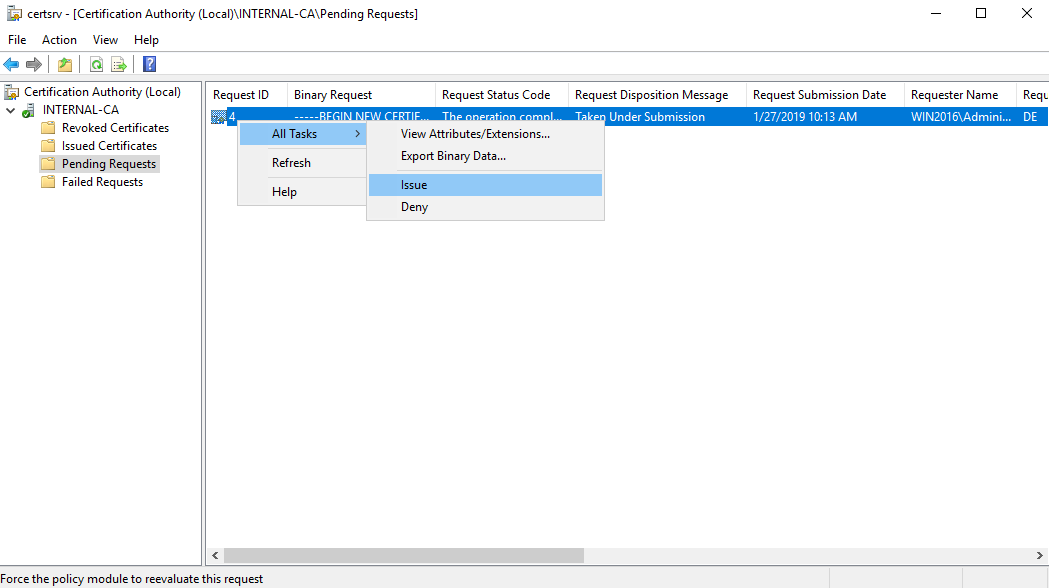
-
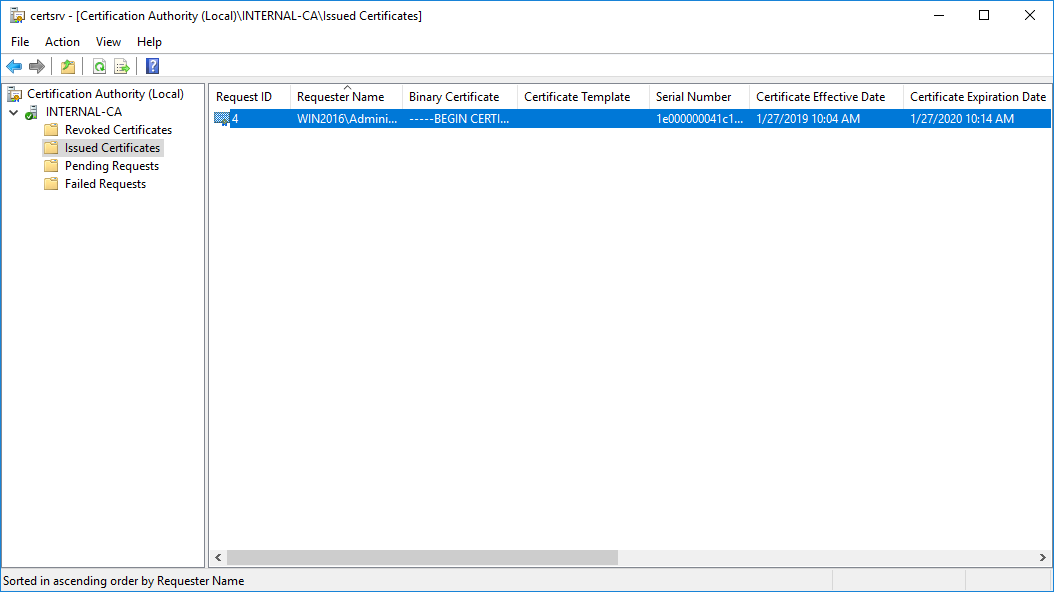
Once the certificate has been issued, it will be located under "Issued Certificates"
Step 3: Download and inspect certificate
-
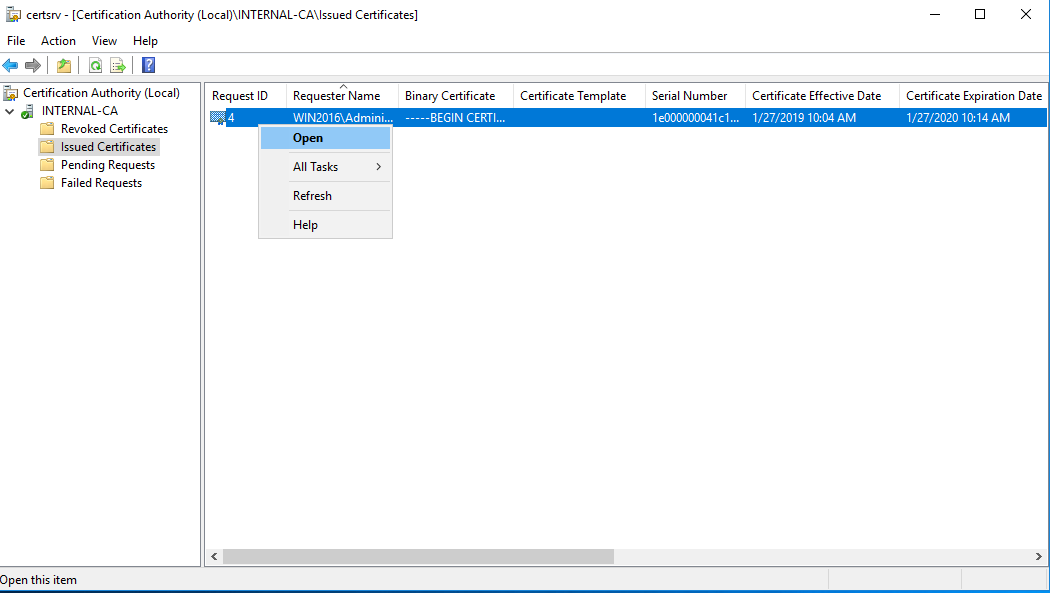
Right click on the issued certificate and click “Open”.
-
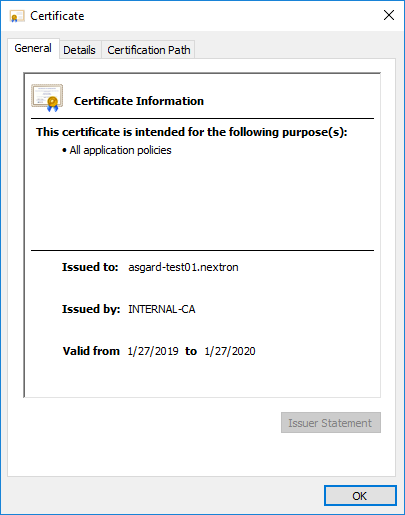
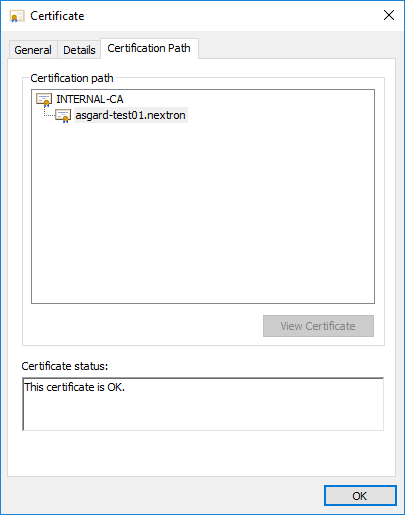
Inspect the information of the Certificate and continue to the next step, if the presented data is correct.
Step 3: Export certificate
-
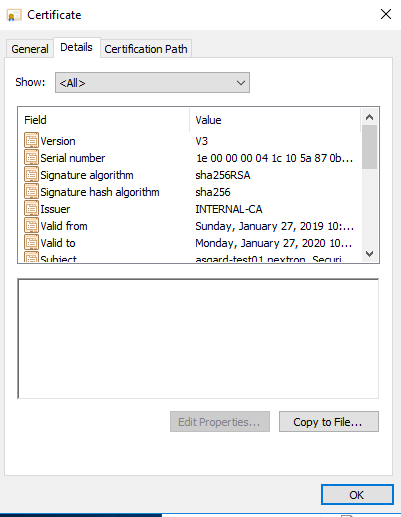
Navigate to the Details tab and click "Copy to File…".
-
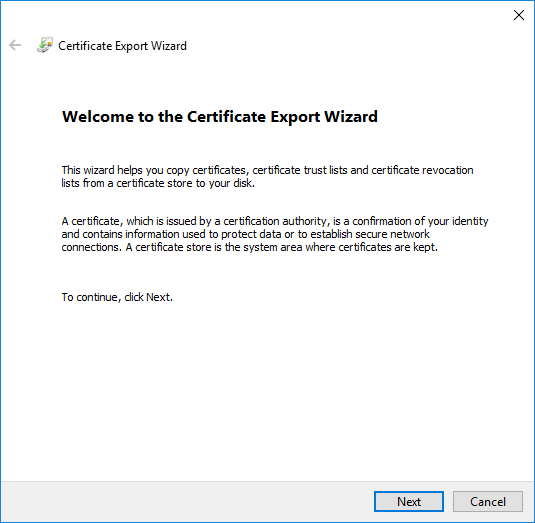
On the Certificate Export Wizard click “Next”.
-
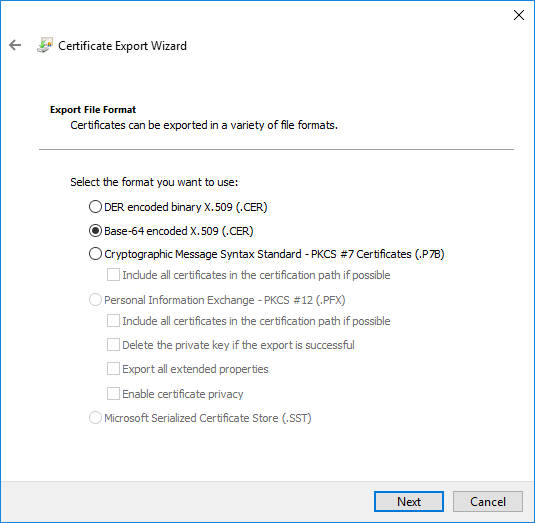
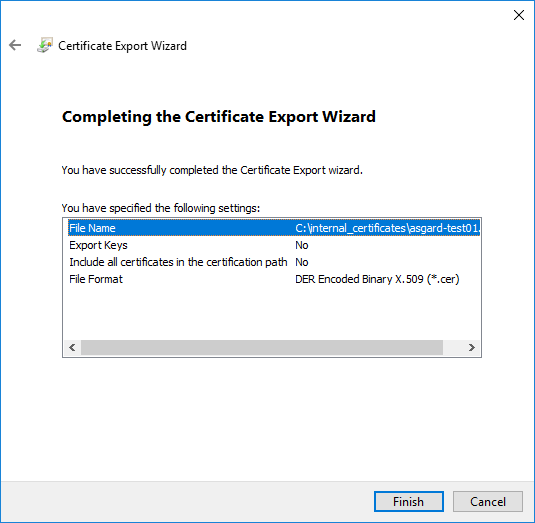
Select “Base-64 encoded X.509(.CER)” and click “Next”.
-
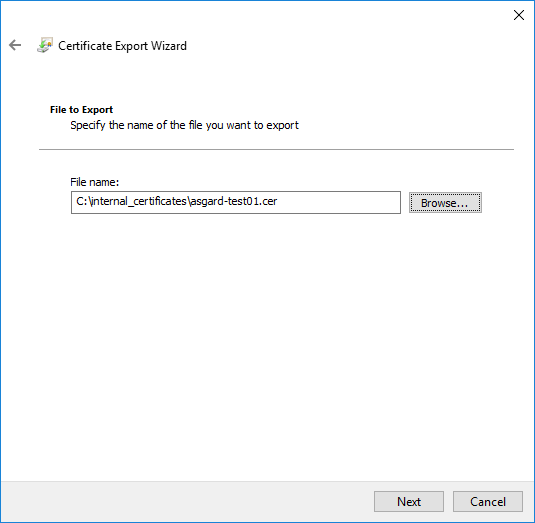
Choose an output location and click “Next”.
-
Click “Finish”. Once the confirmation message box pops up, click “OK”.
Step 4: Import certificate into ASGARD
-
Navigate to Settings >> TLS. On the bottom of the page click
Upload TLS Certificateand select the exported certificate from the previous step.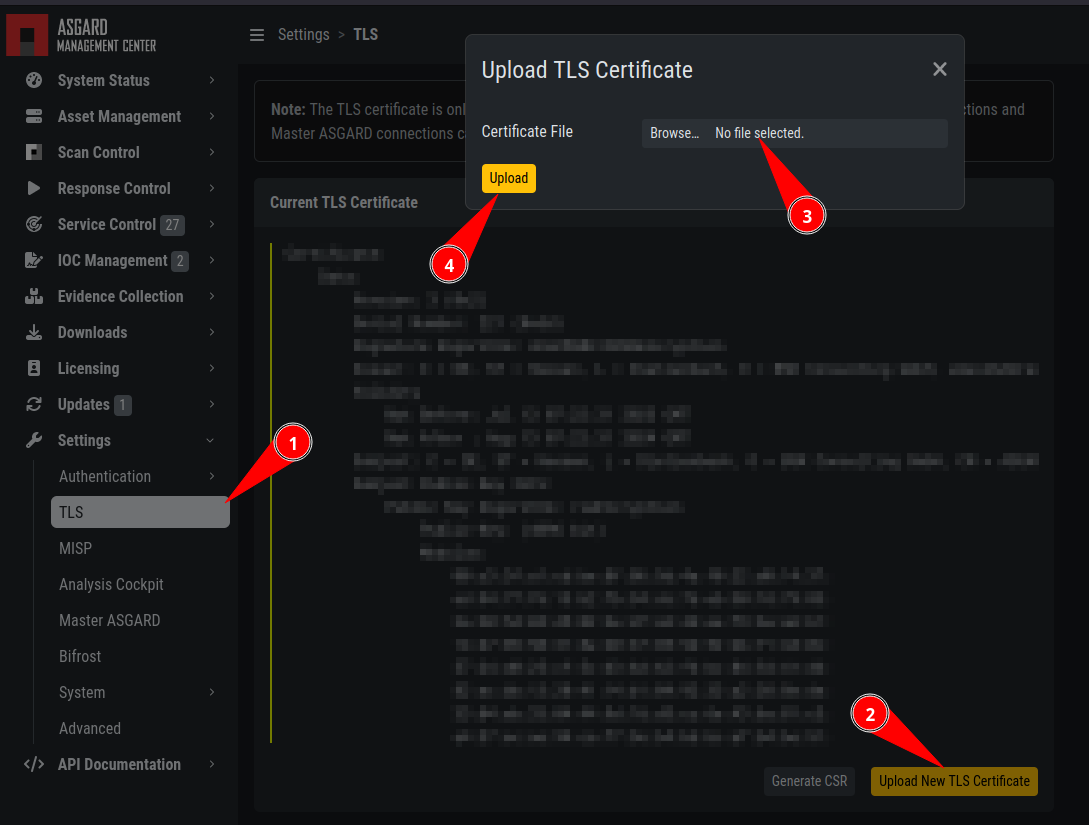
If all steps were followed, a message box should pop up indicating that the certificate was successfully installed.
-
Restart the ASGARD service. Navigate to Settings >> Services and restart the ASGARD service by clicking the
RestartAction button. Please take into consideration that it could take a few minutes until the ASGARD Service is restarted successfully.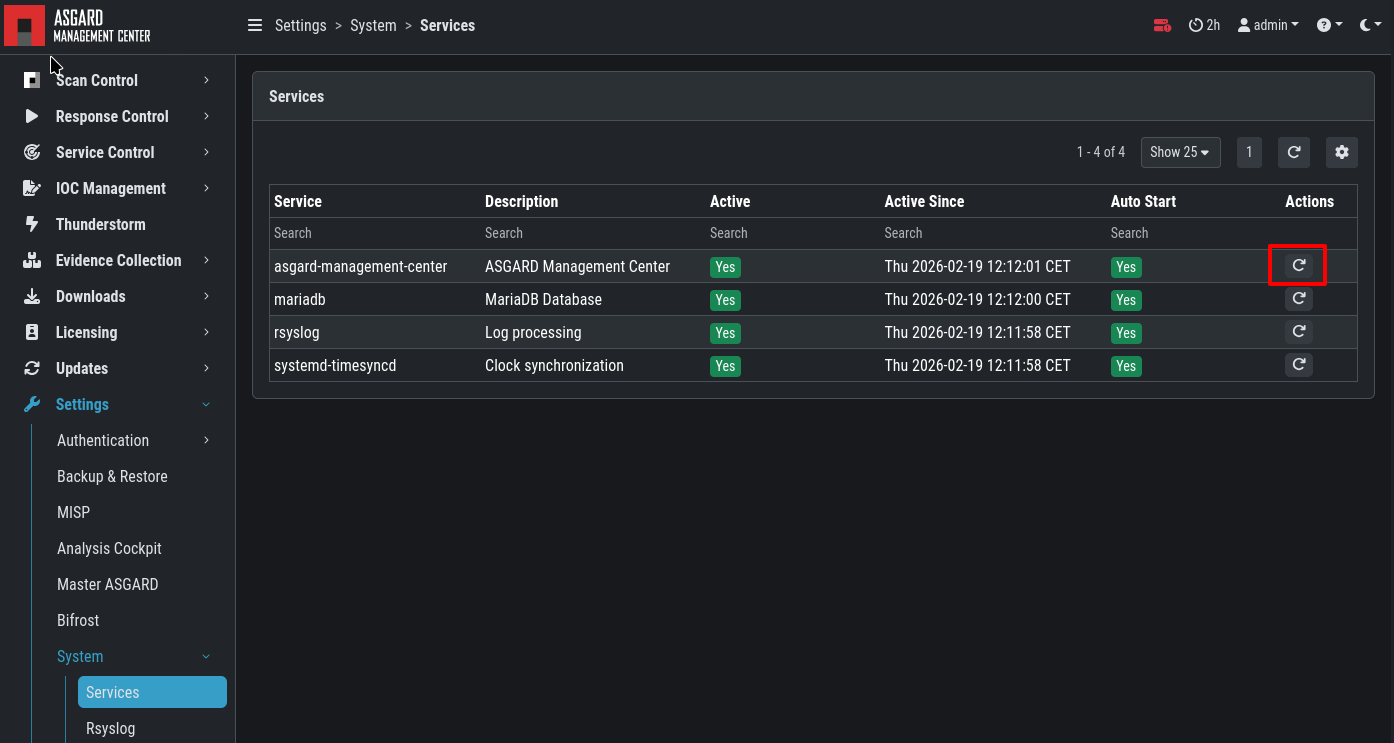
Please take into consideration that it could take a few minutes until the ASGARD Service is restarted successfully.
After the service has been successfully restarted, the installed certificate will be used by your Management Center.