

If the hostname will not change, use the backup functionality to migrate.
Step 1: Install the new Management Center
Install your ASGARD using the same FQDN as the old one, https://asgard-manual.nextron-systems.com/en/latest/setup/index.html
As license, please use the existent license from the legacy Management Center. Do not change the DNS entry at this time, and access your new instance via IP.
Step 2: Prepare your legacy Management Center and create a backup
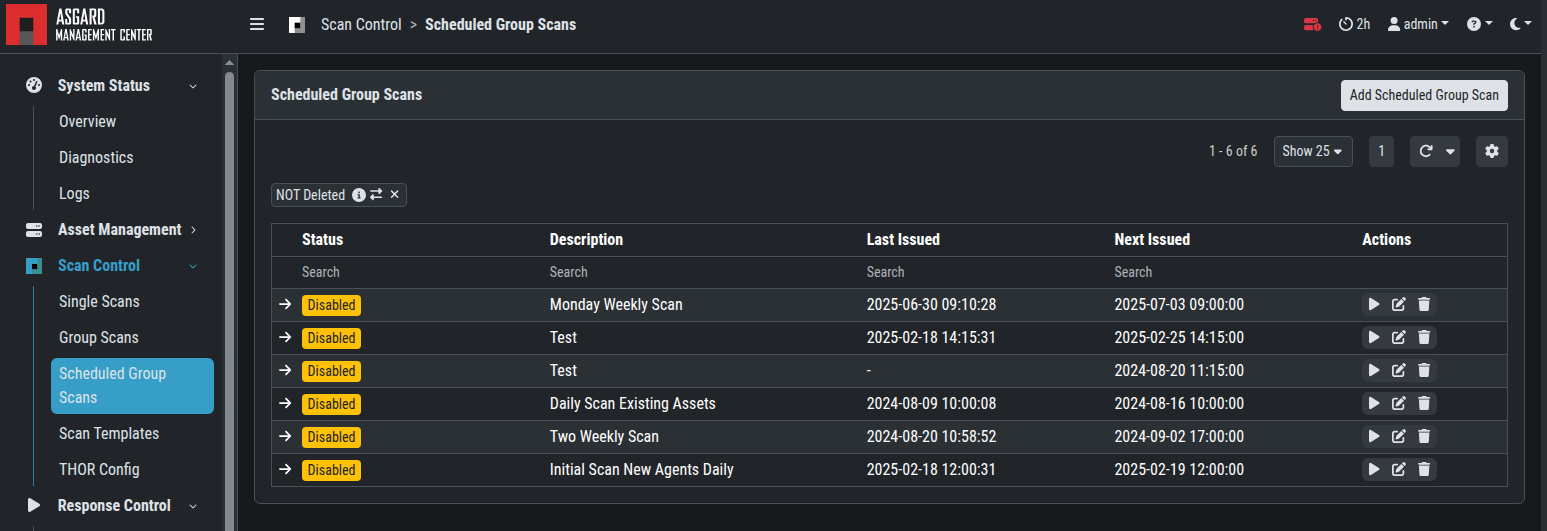
Disable all Scheduled Group Scans and Scheduled Group Tasks on your legacy Management Center or your Master ASGARD.
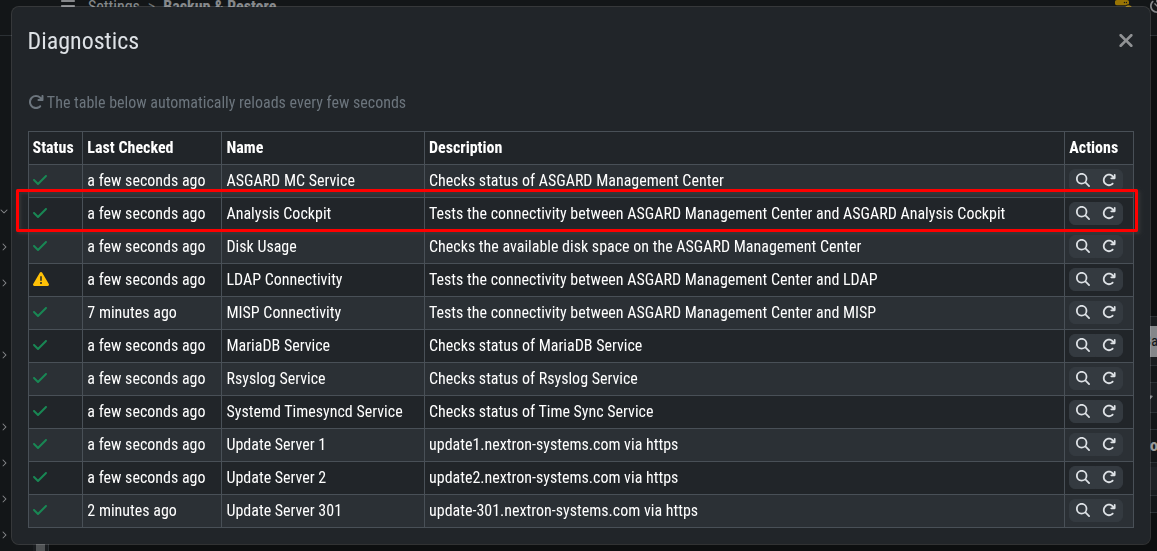
Check that the connectivity between your Management Center and your Analysis Cockpit is green and all events up to this point have been transmitted.
If possible, create a backup and download it.
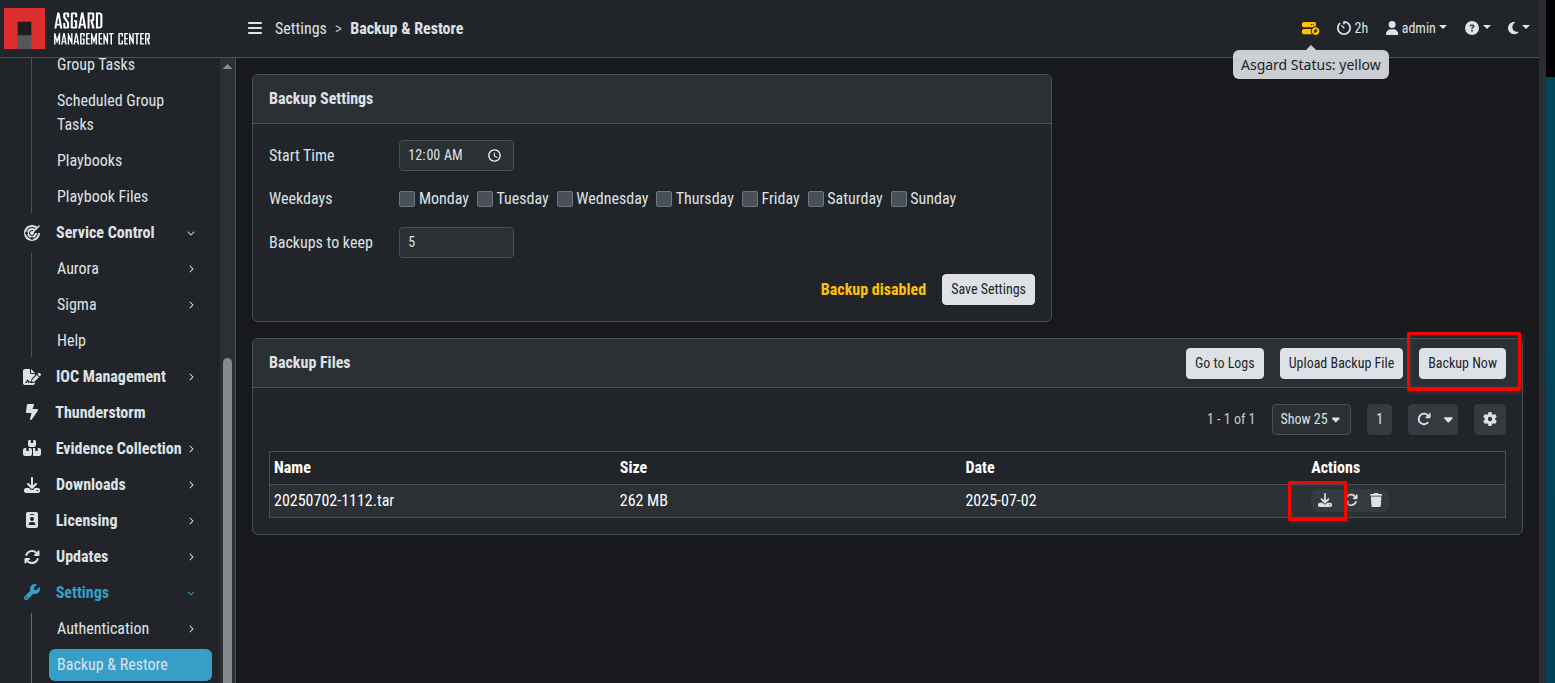
The backup excludes scan results in “/var/lib/asgard-management-center/scan-results”. To migrate these files, run this command:
sudo tar -czvf scan-results.tar.gz -C /var/lib/asgard-management-center scan-results
scp scan-results.tar.gz nextron@YOUR-NEW-SERVER-IP:/home/nextron
Step 3: Unlink your Management Center from your Analysis Cockpit and Master ASGARD, if in use
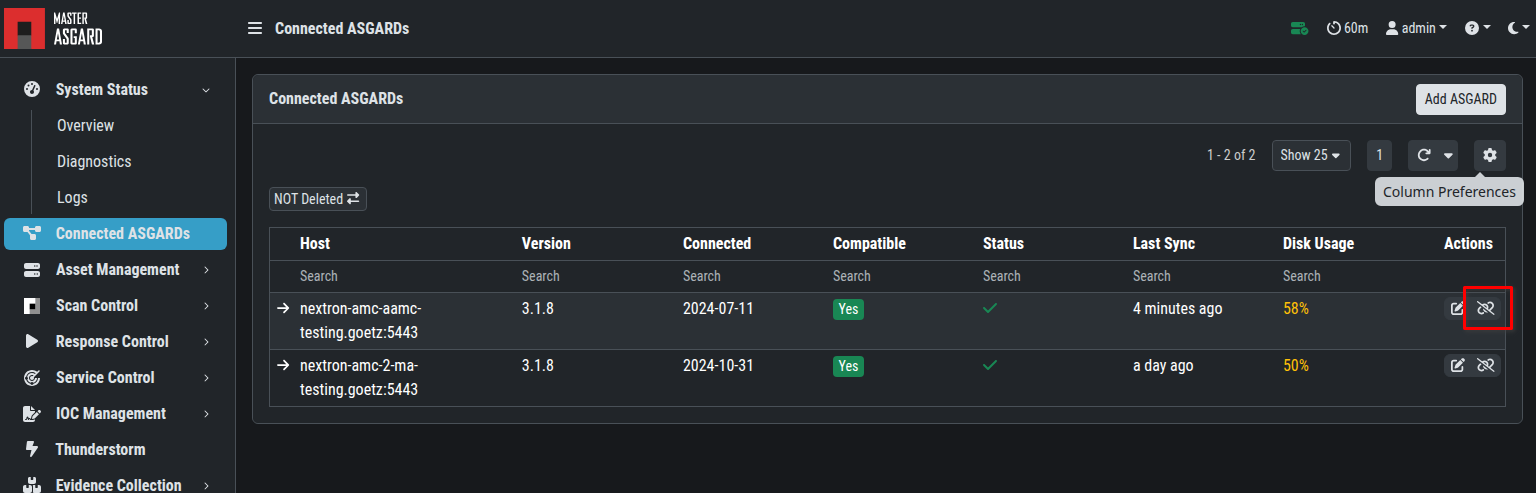
Login into your Cockpit and unlink the corresponding Management Center.
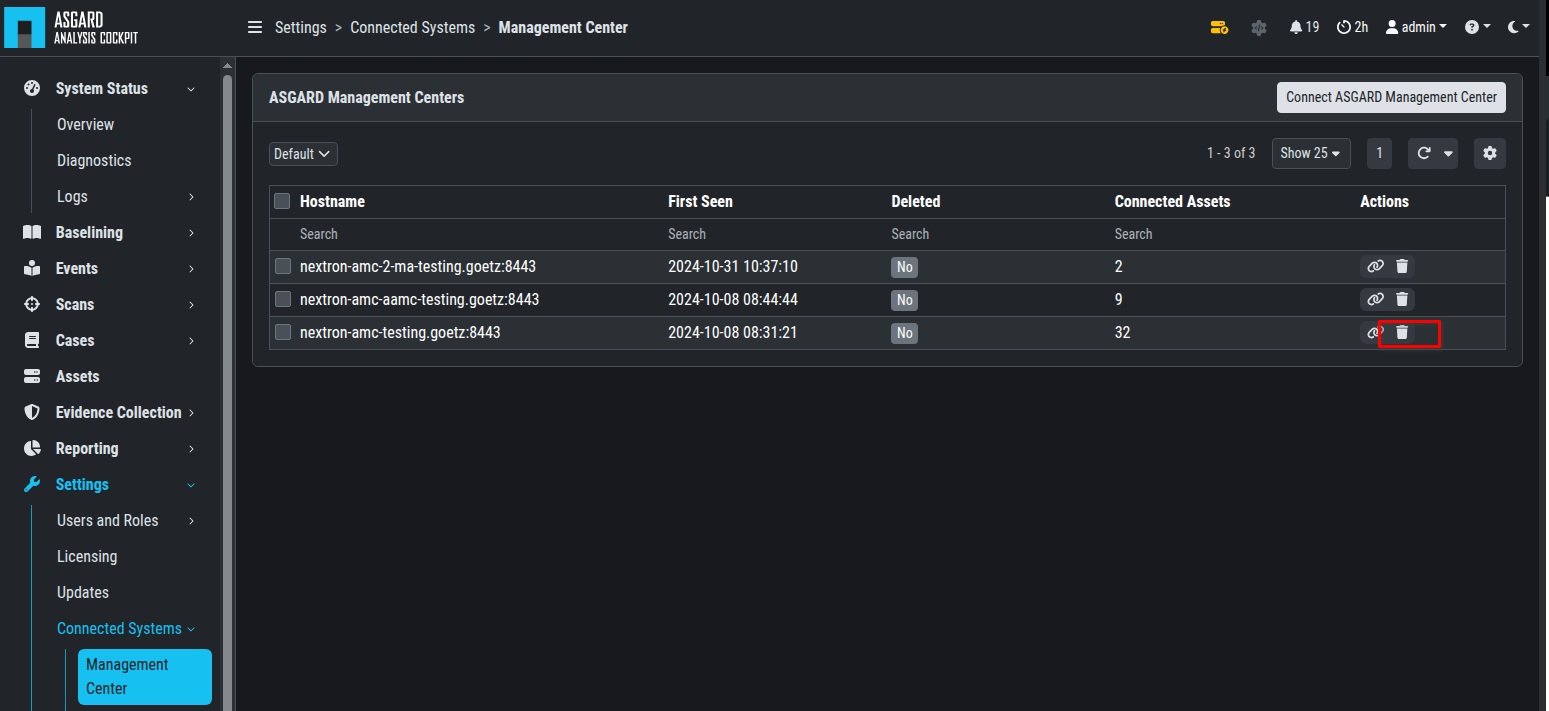
Login into your Master ASGARD and unlink the corresponding Management Center.
Step 4: Import the backup into your new Management Center
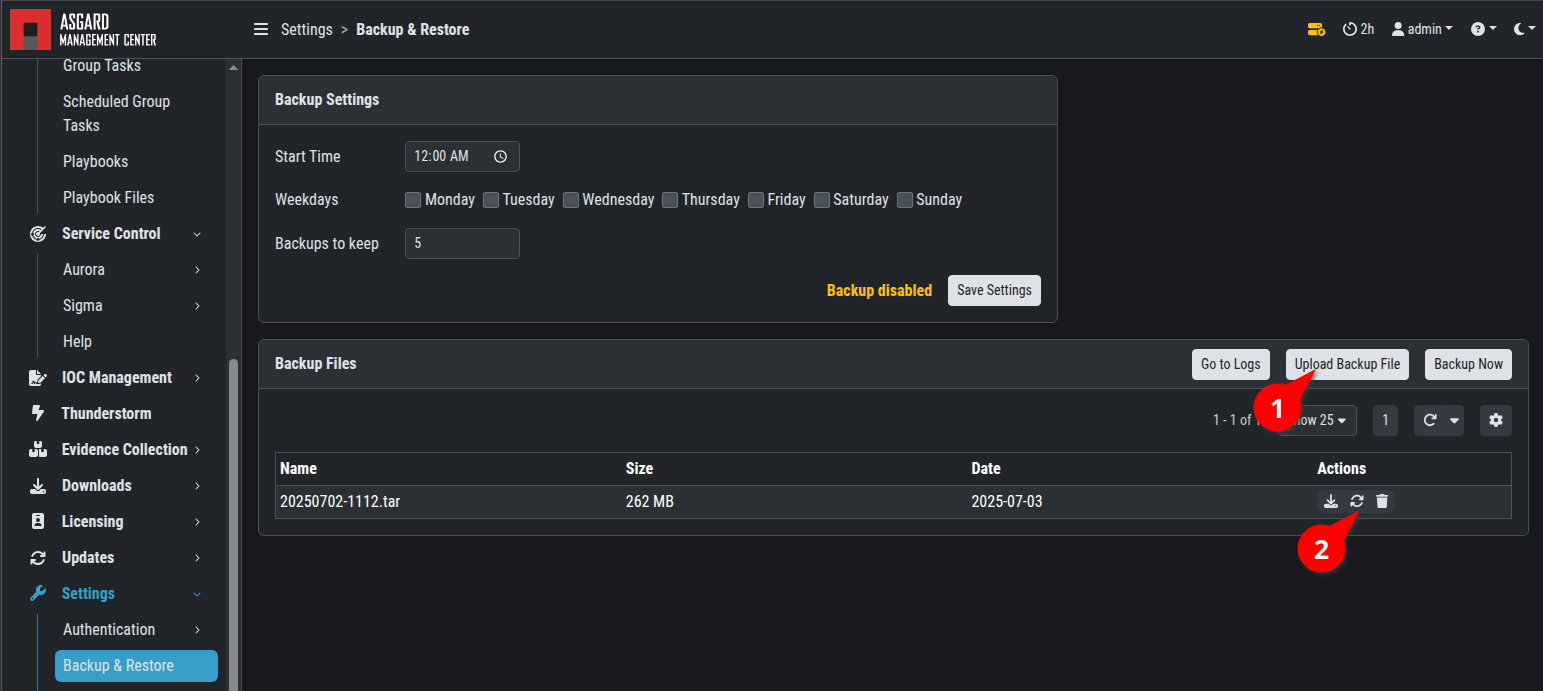
Now your are ready to import the backup into your new Management Center. Upload the backup (1) and import it (2).
Step 5: Control the imported data
Now check, if all required settings has been imported, e.g.:
-
Assets
-
Scheduled Group Scans (if they are not managed via Master ASGARD)
-
Scheduled Group Tasks (if they are not managed via Master ASGARD)
-
ASGARD Settings
-
Agent Settings
If you want to import the events from your legacy Management Center created in Migrating the ASGARD Management to a New Server | Step 2: Prepare your legacy Management Center and create a backup, please execute the following command:
sudo tar -xzvf /home/nextron/scan-results.tar.gz -C /var/lib/asgard-management-center
Step 6: Change the DNS entry for your Management Center
If your import check succeeded, shut down the legacy Management Center and update the DNS settings so the FQDN points to your new Management Center. Note that name resolution may take time depending on your DNS entry's TTL. On Windows, run this console command to force the update:
ipconfig /flushdns
Try to reach the Web UI of your new Management Center by FQDN.
Step 7: Reconnect the Cockpit and the Master ASGARD
Test whether your Cockpit and Master ASGARD can reach the new Management Center by FQDN using ICMP. If name resolution succeeds, reconnect the systems.
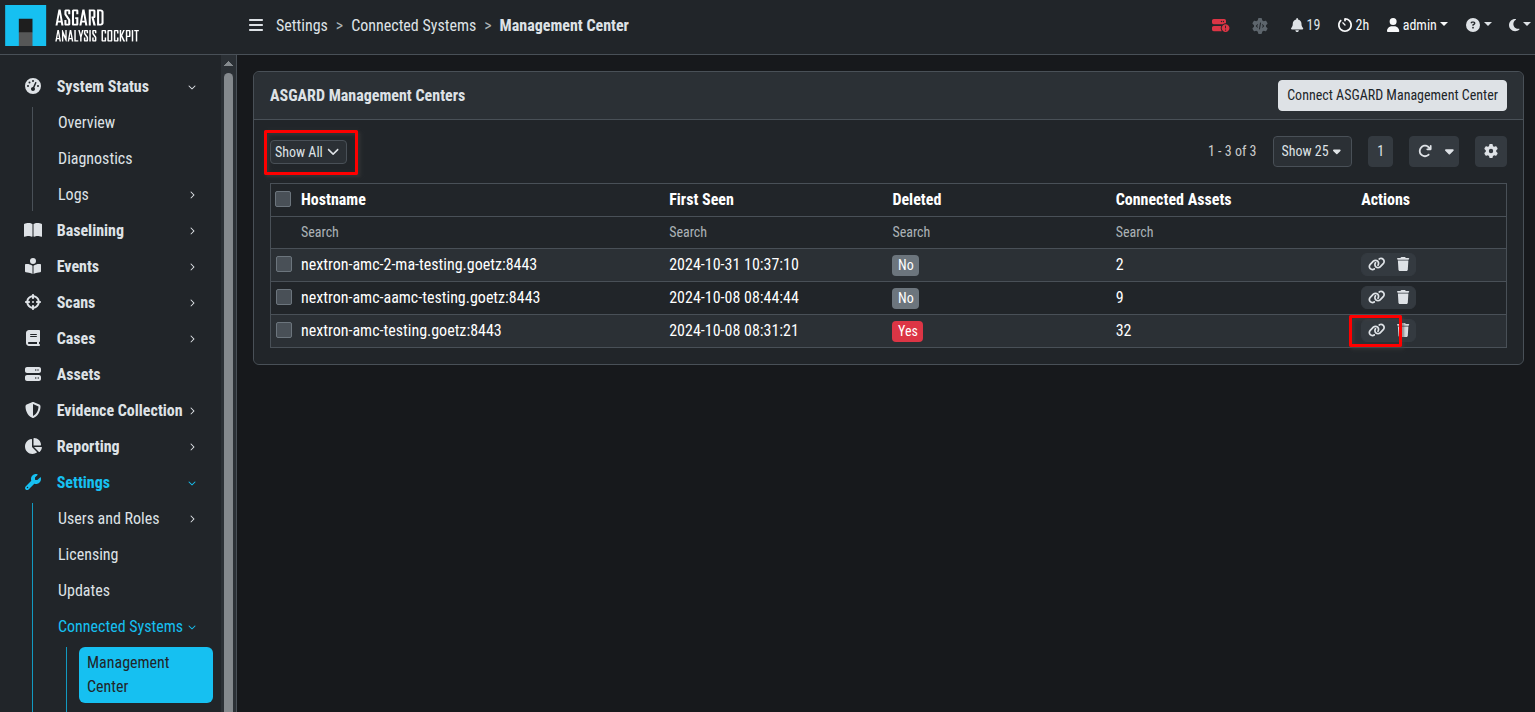
First, reconnect your Management Center to your Cockpit. Switch the view to "Show all" to display the unlinked Management Center.
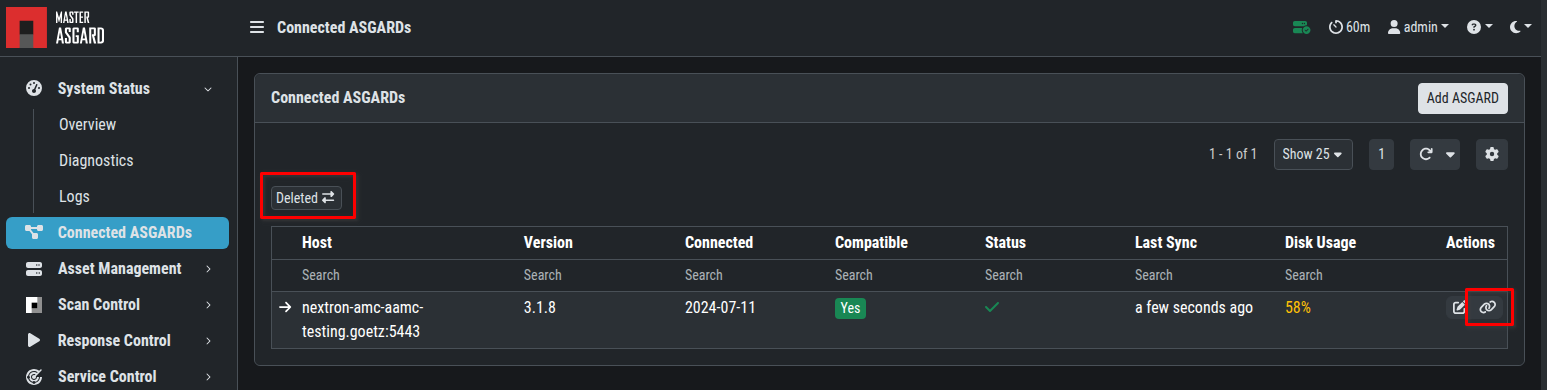
Reconnect your Management Center to your Master ASGARD. Switch the view to "Deleted" to display the unlinked Management Center.
Step 8: Finalize your migration
-
Control the ASGARD status in your Management Center. All required connections should be green.
-
Reactivate the Scheduled Group Scans and Scheduled Group Scans (if not managed via Master ASGARD).
-
Perform a manual test scan.
-
Perform a manual task, such as starting a Remote Console.
-
Offboard your Management Center machine.
If errors occur, check the logs of the participating systems:
-
ASGARD: "System Status / Logs"
-
Windows Agent: "C:\Windows\System32\asgard2-agent\log\agent.log"
-
Linux Agent: "/var/lib/asgard2-agent/agent.log"