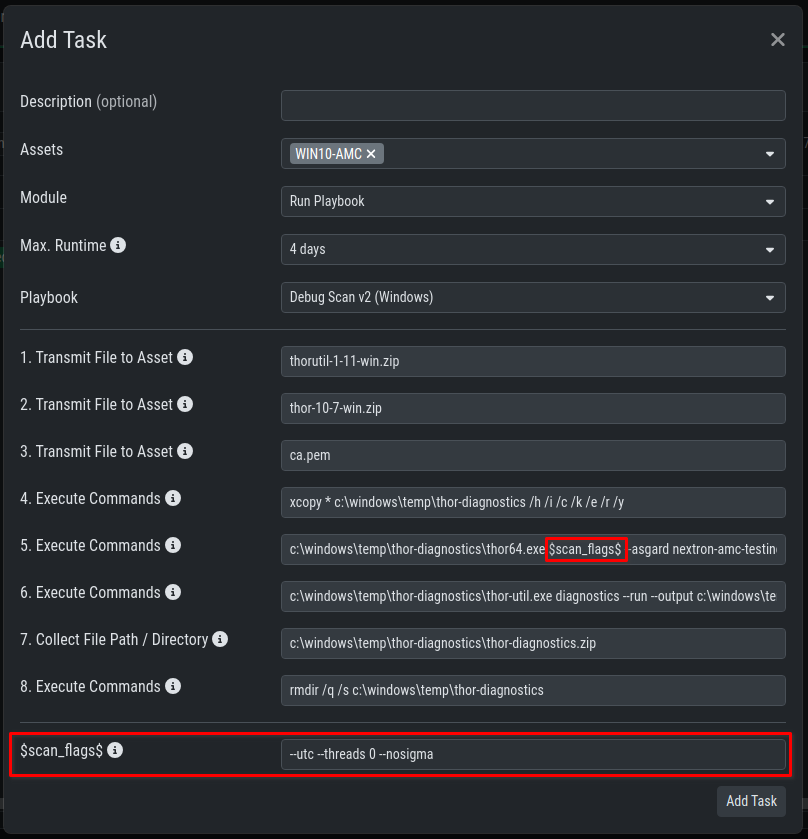
Monitoring Resource Status
The target system should be examined for resource bottlenecks, which can cause excessively long scan durations - particularly CPU constraints - that result in scans being aborted due to the "Max. Runtime" setting. The System Load dashboard in the AMC provides a good starting point for this analysis. If resource bottlenecks are identified, you should either adjust the asset's resources or reduce THOR's resource consumption, though the latter should be considered only as a last resort.
Analyzing Restarts and Shutdowns
Special attention should be given to scan aborts caused by system restarts or shutdowns of the asset or agent.
An orderly restart during a scan is documented by the agent as follows:
2025/02/12 14:24:34 ASGARD_GENERIC: Info: {"level":"INFO","time":"2025-02-12T14:24:34+01:00","message":"received interrupt signal, sending interrupt signal to subprocess...","component":"controller","pid":8920,"path":"C:\\WINDOWS\\System32\\asgard2-agent\\bin\\generic.exe"}
2025/02/12 14:24:34 ASGARD_GENERIC: Info: {"level":"INFO","time":"2025-02-12T14:24:34+01:00","message":"waiting for graceful process stop...","component":"runner","pid":5420,"path":"C:\\WINDOWS\\Temp\\asgard2-agent\\a3fb09b3-3169-465b-b78a-0b98a3aa7f4f\\thor\\thor64.exe","timeout":"45s"}
A disorderly restart does not give the agent time to create an entry.
If the AMC-controlled resume upper limit or the scan deadline has been reached, the scan will not be republished to the asset. The following status text in the AMC dashboard indicates this error:
failed to send start task request: rpc error: code = Unknown desc = task has already been started and cannot be resumed anymore (max resumes: 5, deadline: 2025-01-20T06:53:13Z)
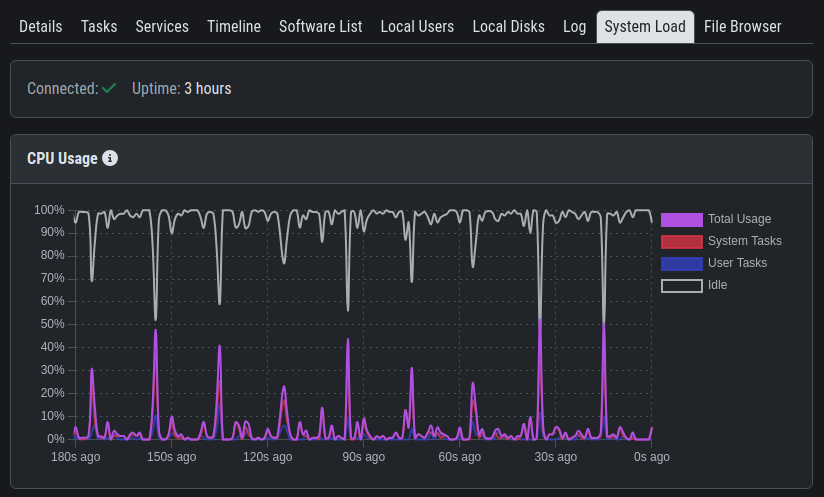
To analyze a restart in the operating system events, we can use a playbook in AMC. The example below demonstrates using wevutil for MS Windows.
Using Syslog
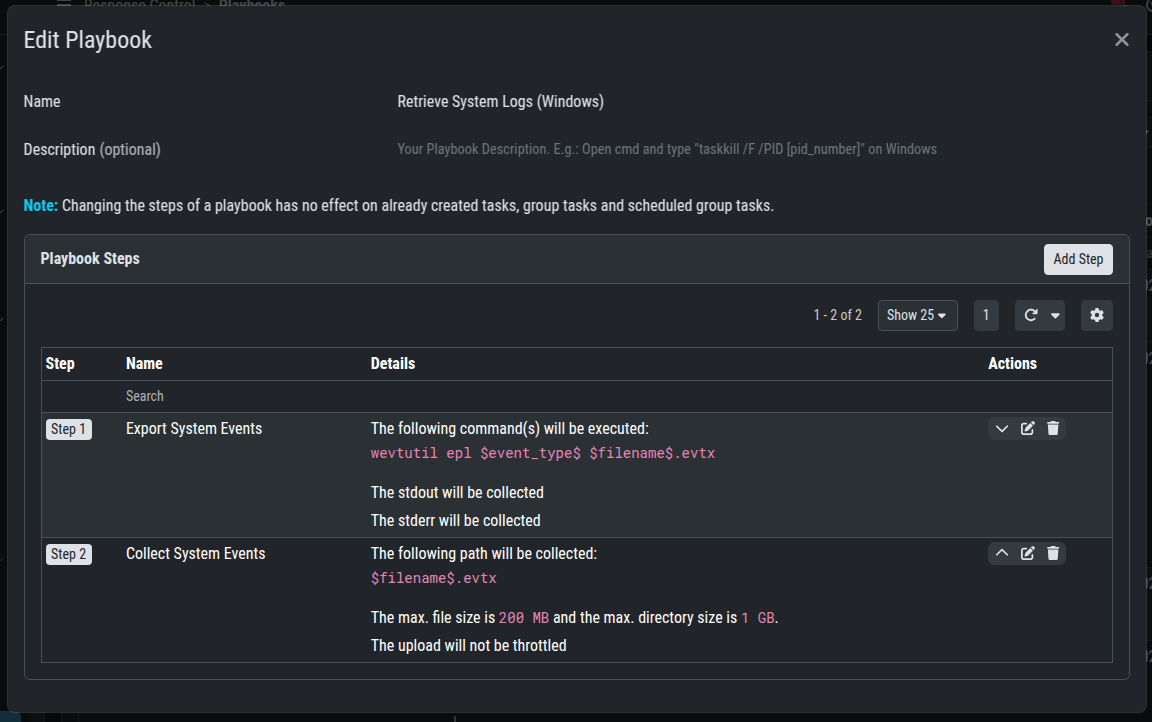
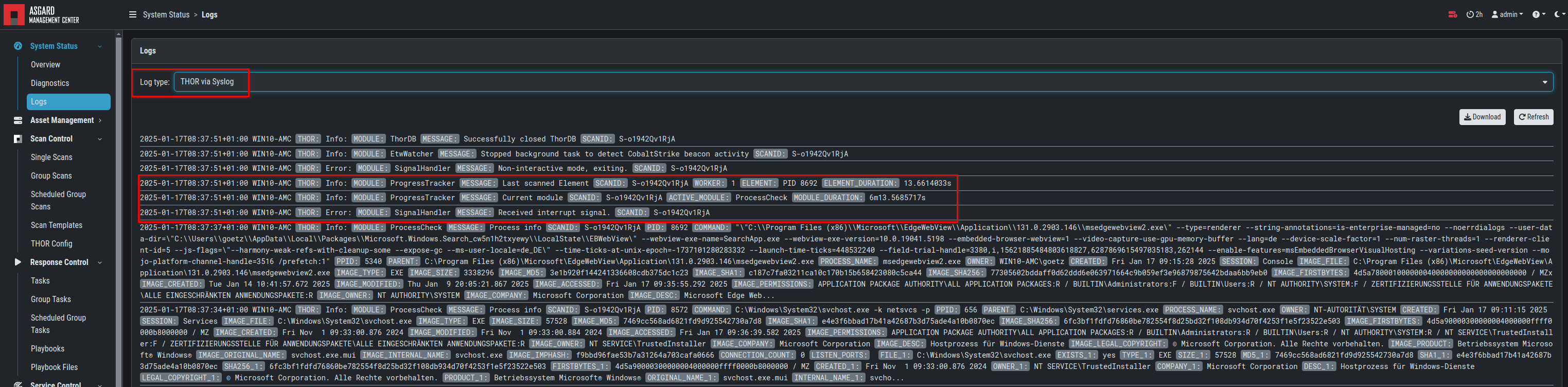
Since the THOR log is not uploaded if the scan fails, using Syslog provides access to the logs despite this.
Enable the syslog flag during scan setup to send logs to your AMC.
Once the scan has failed, you can access the logs through the Logs interface within your AMC. For example, this allows you to review the THOR modules that were in use just before the scan completion.
Debugging with THOR Util (Playbook Example)
Preparation
If the error remains unidentified, THOR Util can help to pinpoint the problem. Running THOR util with the diagnostics flag will create a detailed diagnostics log which can be uploaded to AMC. However, using it requires a few preparatory steps. We will provide a step-by-step guide in the text section.
THOR Util
THOR Util is not included in the AMC THOR package and must be downloaded separately from the Customer Portal or requested directly from Nextron Systems.
THOR Binary
THOR Util requires both a previous scan and the THOR binary, meaning the scan cannot be executed via the agent and must be part of the playbook itself. You can download the THOR package from "Downloads / THOR" in your AMC and retrieve the license using the "asgard" flag. Downloading the THOR license during playbook execution requires the Download Token from your AMC, found under "Downloads/THOR", which can be integrated directly into your playbook or defined as a variable.
CA Certificate
For secure communication with the AMC (such as retrieving the license key), the root CA certificate for host verification during TLS handshakes must be accessible and added to your playbook. The root CA can be downloaded from https://YOUR-AMC:8443/ca.pem.
Using Same Flags
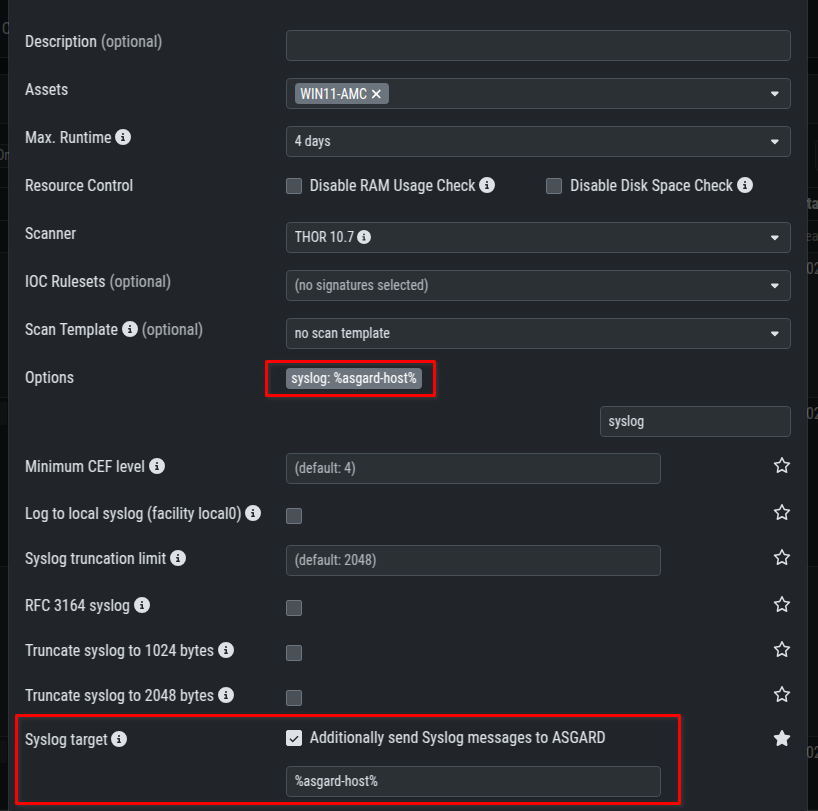
To accurately diagnose the issue, you must use exactly the same flags as the failed scan. These flags can be entered when assigning the playbook task to your asset.
Proceed as follows to setup your playbook.
Playbook Setup
This example is based on Windows OS but can be adapted for Linux or macOS. Ensure you select the correct packages for your target operating system. Your package names may differ from the provided example, and it is helpful to include the software and OS version in the THOR and THOR Util package filenames.
-
Download the THOR package, the ca certificate and THOR Util on your computer.
-
Upload these files to your AMC via "Response Control / Playbook Files".
-
Create a new Playbook "Debug Scan (Windows).
In this Playbook, create the following steps:
|
Step |
Playbook action |
Comment |
|
1 |
The following file will be downloaded from the ASGARD Management Center:
|
|
|
2 |
The following file will be downloaded from the ASGARD Management Center:
|
|
|
3 |
The following file will be downloaded from the ASGARD Management Center:
|
|
|
4 |
The following command(s) will be executed:
|
For execution a temp folder will be created. |
|
5 |
The following command(s) will be executed:
|
The required scan flags will be defined as variables and defined when the task is executed. Please replace "YOUR DOWNLOAD TOKEN" with your own. |
|
6 |
The following command(s) will be executed:
|
THOR Util will be executed with "diganostics" flag. The diagnostics package will be stored as ZIP package in the working folder. |
|
7 |
The following path will be collected:
|
thor-diagnostics.zip will be uploaded to your AMC. |
|
8 |
The following command(s) will be executed:
|
Delete the working directory. |
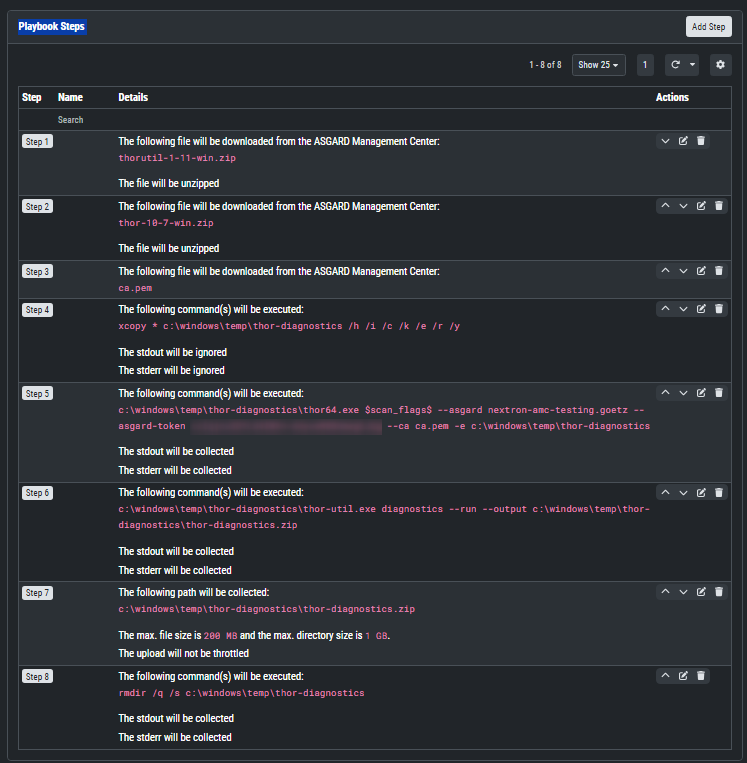
Please do not forget to reinsert the flags that were used in the faulty scan.