

Memory Limits
Memory availability is a common cause of scan failures and requires careful consideration. By default, THOR's internal memory management is disabled for scans deployed through the AMC using the --minmem 0 flag, with the agent handling memory control instead.
The agent's launcher evaluates whether RAM usage is acceptable using this logic:
Memory check conditions (either must be true):
-
THOR is using less than 2 GB of RAM, OR
-
THOR is using less than half the system's total RAM AND at least 50 MB remains available
When scanning via ASGARD, THOR is always allowed to use up to 2 GB of RAM, even when system memory is constrained. Once THOR exceeds 2 GB, it becomes limited to using no more than half of the system's total RAM, and the system must maintain at least 50 MB of free memory for the scan to continue.
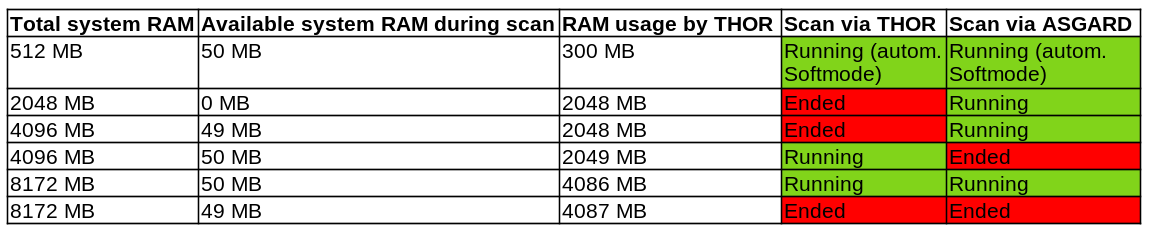
Note: Soft Mode is activated automatically on systems with 1 CPU core or less than 1024 MB RAM.
RAM Digression
Disabling the agent's RAM usage check does not reactivate THOR's internal memory monitoring, as the AMC still assigns scan tasks with the --minmem 0 flag.
To set a custom minmem value (such as --minmem 100 for 100 MB RAM) while the agent RAM check is disabled, you must:
-
Create a scan template in your AMC under "Scan Control / Scan Templates"
-
Export the template
-
Edit the .json file and add the
minmemflag with your desired value (e.g.,"minmem":"100") in the "flags" section -
Import the modified template
-
Assign the template to your scan
This process overrides the default value, as there is no simpler method to modify this setting in ASGARD.
Important: If this is set up and THOR stops a scan due to reaching the RAM threshold, this error will not be displayed in the AMC interface.
CPU Bottlenecks
CPU bottlenecks do not directly cause scan aborts.
The default CPU limit, controlled by the cpulimit flag, is set to 95, with a minimum settable value of 15. This value represents the maximum overall system CPU load at which THOR will actively scan, expressed as a percentage of the system's total CPU capacity.
When the limit is reached, the scan pauses rather than aborts, though scans that run too long due to CPU constraints can be terminated if they exceed the maximum runtime limit. The CPU limit refers to total system CPU usage, not just the CPU consumed by THOR.
When a scan consistently hits the CPU limit with a low threshold, you'll typically observe a saw-tooth pattern in the CPU graph. The scan pauses when overall CPU usage reaches the defined maximum, causing the load to drop, then resumes and climbs back to the limit again. If you observe this behavior, you should increase your CPU limit for more consistent scanning performance or investigate which other processes are generating the CPU load.
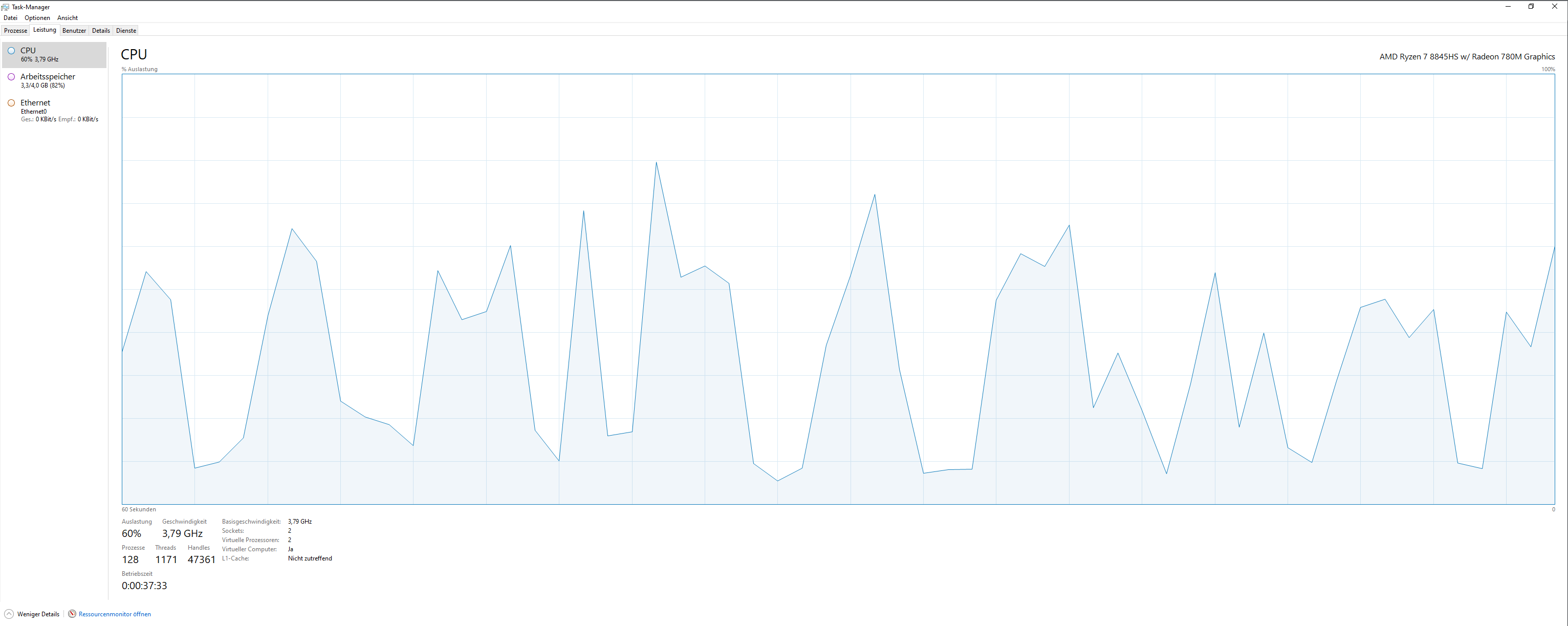
The CPU limit check can be disabled via the flag nocpulimit which we only recommend in exceptional cases.
Note: By default THOR scans only use one core of the CPU. Using the threads flag you can assign more than one core to accelerate the scan.
EDR and Antivirus Considerations
Existing security software can significantly interfere with THOR scans and potentially cause them to abort. While security solutions vary in their configuration options, most allow you to define paths that should be excluded from monitoring.
Our recommended exclusions can be found in the ASGARD Management Center manual:
https://asgard-manual.nextron-systems.com/en/latest/requirements/av_edr.html